

Key Takeaways
- Granola's free plan hides notes older than 30 days but doesn't delete them. The CSV export at Settings, Profile, Generate CSV reaches the locked ones too.
- We ran a real free-plan export in July 2026: 75 meetings, seven months of history, full transcripts on every row. So "Granola has no export" is out of date.
- Watch the edges: only notes that have a summary are included, the file comes by email, and the transcript in the CSV carries no speaker labels.
- A CSV is a dead file the day you download it. Put the history in Notion or Obsidian so you can still search it. Kai doesn't import Granola exports, but it records the calls you have from here on and preps you for the next one.
I work on Kai, our AI executive assistant, and I went looking for a Granola export because I hit the wall myself. Granola's free plan only lets you open notes from the last 30 days, and I had months of calls I could no longer read. If you want to export Granola notes and actually keep them, the good news is the export is real, it's free, and it reaches the meetings the app has already locked. The path just isn't where most articles say it is.
Half the write-ups you'll find claim Granola has no export at all. One teardown puts it plainly: "there's no easy export function, which means copy and paste is your only option for getting notes out of the system" (MeetingNotes). That was true once. It isn't now. There's a one-click CSV export sitting in Settings, and it doesn't stop at the 30-day line. This guide is only about getting your notes out. Our full Granola review covers the product itself, and Bluedot vs Granola and Fathom vs Granola put it against its closest rivals.
Here's what this guide covers:
- What Granola's 30-day lock actually does to your notes
- What it really takes to keep meeting notes you can still use
- The exact export path, step by step, with what the file contains
- Where to put the export so it doesn't turn back into a dead file
What Granola's 30-day lock actually does
Granola's free tier, called Basic, limits you to the last 30 days of note history in the app. Older notes don't get deleted. They're stored on Granola's servers, just hidden from you until you pay. Granola's own billing docs say it directly: notes older than 30 days "are not deleted, we keep them stored, but they are not accessible in Granola," and upgrading restores "access to your entire note history" (Granola billing docs).
The 30-day lock landed in early October 2025, not with the February 2026 rebrand as several write-ups still say. The free tier before it wasn't unlimited either: it was a 25-meeting trial. The tier that unlocks full history now is Business at 14 dollars per user per month.
| Plan | Price | Note history |
|---|---|---|
| Basic (free) | 0 dollars | Last 30 days in the app |
| Business | 14 dollars/user/mo | Unlimited |
| Enterprise | 35 dollars/user/mo and up | Unlimited |
Source: Granola pricing. Verified 2026-09-19. Granola bills monthly, per seat, with no annual discount.
 Did you know?
The paywall hides your history, it doesn't erase it. Notes older than 30 days sit on Granola's servers the whole time you're locked out, which is exactly why the export can still reach them.
The lock isn't unique to Granola either. The same data-lock pattern runs through the category, from Otter's export limits to how Read AI handles meeting notes.
What it takes to keep notes you can still use
Downloading a file isn't the same as keeping your notes. If the goal is to still get value from an old meeting six months from now, four things have to be true.
- It has to reach the locked meetings. A backup that only grabs the last 30 days is the same trap with extra steps. You need the full history, including everything the app won't open.
- It has to carry the real content. A title and a date tell you a meeting happened. The summary and the transcript tell you what was decided and what was said, which is the real job of your meeting notes and of any minutes you write from them.
- It can't re-expire. A CSV is a snapshot from the moment you generated it. New meetings won't appear in it, and neither will anything you forgot to export.
- You have to be able to find things in it. A 50,000-character transcript in a spreadsheet cell is technically saved and practically unusable. The point of keeping notes is answering a question later.
The first two are about the export itself. The last two are about where the export lands. Miss either half and you've archived a folder you'll never open again.
Why copy-paste falls short
The advice you'll usually find is to open each meeting and copy the text into a document before it locks. That works for the three meetings you remember. It falls apart at the scale where the lock actually hurts.
I had months of calls to save. Doing that by hand, one meeting at a time, is exactly the kind of task nobody finishes. It's why a small economy of scripts exists to pull Granola data out programmatically. One developer reverse-engineered the desktop app to find the endpoint that holds the notes, after Granola support "said they don't have an API" (Joseph Thacker). Another wrote a Claude Code script specifically to reach "free-tier full history, files on disk" (Daniel Moon). There are more than a dozen of these on GitHub. Most of them no longer run, which is its own story and one I come back to below.
When people write code to get their own notes out of a product, the friction is real. But you don't need to write anything. The official export does the heavy lifting.
How to export Granola notes, step by step
Step 1: generate the CSV
Open Granola on desktop, go to Settings, then Profile, and click Generate CSV. That's the whole trigger. The file doesn't download in the app. Granola emails it to you within a few hours, the download link is valid for 24 hours, and you can run one export per 24 hours per account.
One thing to know before you count rows: the export only includes notes that have a summary, and it skips deleted notes and any note without one, so the count can come out lower than what the app showed you (Granola export docs).
Step 2: check what you actually got
This is where the internet contradicts itself, so I ran a real export from a free account in July 2026 and opened the file. Here's the exact shape of it, with a couple of fields simplified.
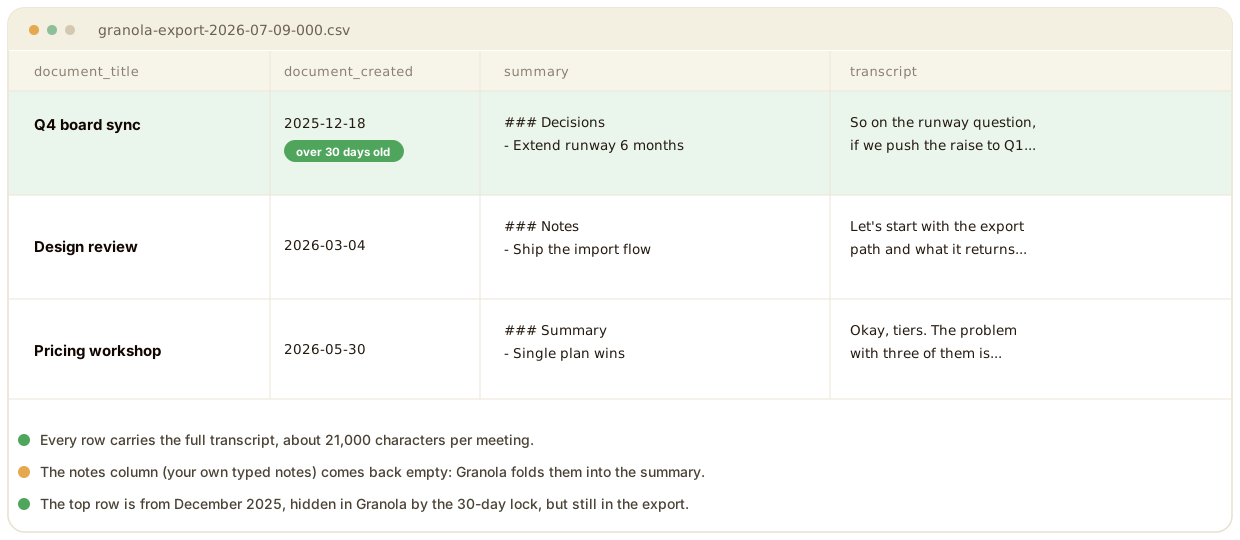
Three things stood out. The oldest row was from December 2025, seven months before the export, so the file genuinely reaches meetings the 30-day lock had hidden. Every row had a full transcript, averaging around 21,000 characters. And the notes column was empty on all of them.
That last one worried me until I understood it. The notes column is meant for the notes you type yourself during a call. Granola's whole model is that it folds your typed notes into the AI summary, so if you barely type, that column comes out blank while the summary holds the substance. Your live notes aren't missing, they're baked into the summary.
 Note
NoteGranola's own docs disagree on transcripts. The export page says the CSV includes them, the billing page says "titles and summaries" only. Our July 2026 export carried full transcripts, but Granola could change this, so run a fresh export and check yours before you rely on it.
The other edge is speaker labels: the CSV doesn't carry them. The transcript reads as one continuous voice, so you can see what was said but not cleanly who said it. This is a limit of the export file, not of Granola, which does tag speakers inside the app on Google Meet and Zoom calls. Granola never stores the audio either, so there's no recording to fall back on, which is part of a wider recording and consent tradeoff across these tools.
Step 3: put it somewhere it won't re-expire
Now you're holding a spreadsheet with a few dozen meetings crammed into it. That's the archive done, and the archive is also the problem. Nobody opens a CSV to remember what their accountant said in March.
 Tip
TipDon't stop at the CSV. A spreadsheet is a backup, not a memory. The value comes from putting the meetings somewhere you can still ask questions of them later.
You have a few real options, and the next section walks through each destination: a second Granola account, Notion, or Obsidian.
How to get the full Granola transcript, not just the summary
Most people arriving here don't want the summary. They want the raw transcript, and they want the one from the meeting the app won't open any more. That's a different question from "how do I export my notes", and the answer has moved twice this year.
Does the CSV export actually include the transcript?
In our July 2026 free-plan export, yes. Every one of the 75 rows carried its full transcript, averaging around 21,000 characters.
The reason anyone asks is that Granola's own documentation contradicts itself, and it still does as of September 2026. The export page says the CSV contains "the title, note summary, transcript, and other basic details for each note". The billing page, describing the same file, says it contains titles and summaries. Both are live. We went with the export we actually ran, but generate a fresh one and open it before you delete anything, because the file is the only thing that settles it.
There's no per-meeting transcript download, by the way. Granola gives you the clipboard inside a note and the whole-account CSV, and nothing in between. No PDF, no Markdown file, no JSON.
Does Granola keep your transcripts?
By default, indefinitely. But there's now a setting that changes that answer, and most people don't know it exists.
Under Settings, then Preferences, in the Data and sharing section, there's an "Auto deletion period for transcripts" dropdown. You can set it to 1 day, 1 week, 1 month, 3 months, 6 months, 1 year, or Off. It's Off by default. Turn it on and a one-week cooldown runs before anything is actually deleted, which is your window to change your mind. After that, transcripts older than your chosen period are deleted on a rolling basis. Your notes and summaries survive; only the transcripts go.
NoteTranscript deletion is permanent. Granola's own wording is "permanent and irreversible", and there's no recovery path. Enterprise workspace admins can also impose a retention policy across every user, which overrides individual settings and deletes existing transcripts immediately, with no cooldown (Granola's retention docs).
So the honest answer to "does Granola keep my transcripts" is: yes, unless you or your admin told it not to. If you're on a work account, check whether that decision was already made for you before you assume the history is still there to export.
Why the Granola export scripts on GitHub stopped working
Search for a way to pull Granola transcripts and the top results are still GitHub repos. Most of them are dead, and nobody ranking on those queries says so.
They all worked the same way: Granola kept a plaintext cache file on your machine, the scripts read it, and out came Markdown. Then Granola encrypted the cache. The most-starred of these tools, granary, was archived in July 2026 with a note from its author that reads: "Granola began encrypting its local cache, which is the source granary reads from, so exports no longer work." (granary on GitHub) The others that rank alongside it were last touched in October 2025, February 2026 and April 2026, all before the encryption landed.
A few newer exporters written after the change do run, but they have single-digit star counts and rank nowhere, so you won't find them from a search. If you're going to trust one, check the last commit date first. Anything that talks about reading cache-v6.json or a supabase.json token is describing a version of Granola that no longer exists.
There's also a paid tool now, at 29 dollars one time, which is real but needs a Granola API key. That means a Business or Enterprise plan, which is exactly what the person searching for a free workaround doesn't have.
Getting transcripts out on a paid plan
If you're already paying, two routes open up that the free plan doesn't have.
The API is the direct one. Any workspace member on Business or Enterprise can create API keys, and Enterprise admins can restrict which note-access scopes members are allowed to use. That's the clean programmatic path, and it's the one the 29-dollar tool is built on.
Granola's MCP connector is the other, and its limits are worth knowing before you count on it. On Basic, MCP reaches your personal notes from the last 30 days only, and the transcript tool is explicitly paid-only: get_meeting_transcript is marked "Paid plans only" in Granola's own tool table. So MCP is not a back door into locked history. On the free plan it sees exactly what the app sees.
Which leaves the CSV as the only free route that reaches everything. The scripts are broken, the API is paid, MCP is capped at the same 30 days. That's the whole map, and it's why this guide keeps coming back to one button in Settings.
Where to put your Granola notes and transcripts next
A CSV is a snapshot. Here's what each destination actually gives you, and what it costs.
Move Granola notes to another Granola account
This is the option people search for most after the export itself, and Granola supports it natively. It's called note import, and it moves all your meeting notes and transcripts from one Granola account into another, including the ones older than 30 days that the free plan hides. You don't need to upgrade the old account first.
Three things to know before you run it. The two accounts must use different email addresses, because a verification code goes to the old one. It's desktop only, macOS or Windows, not the iPhone app. And notes are moved, not copied, so the old account ends up empty.
The catch is the one the free plan always brings: the 30-day window is measured against each note's own date, not its arrival date. So a call from last December lands in the new account already hidden. You've consolidated your history, not unlocked it.
If both accounts sit under the same email address as separate workspaces, this isn't the feature you want. Granola has a separate workspace transfer for that case.
Send Granola notes to Notion
Granola has an official Notion connector, and it's narrower than people expect. Once connected, you send notes one at a time from the share menu inside each note. Granola's documentation is blunt about the limit: "there is no automatic or bulk sync". Notes land in a single database that Granola creates when you connect, and you can't pick a destination page, because selecting specific pages isn't supported (Granola's Notion docs).
It's also a Business feature, listed under the advanced integrations that start at 14 dollars per user per month.
So for a handful of meetings going forward, the connector is fine. For the months of history you just exported, it isn't a path at all, and clicking share on 75 notes one at a time is the copy-paste problem in a new outfit. Import the CSV into a Notion database instead.
Get Granola notes into Obsidian
There's no official route here. Granola documents integrations for Notion, Slack, Zapier, HubSpot, Attio, Affinity, its API and its MCP connector, and Obsidian appears on none of those lists.
What's left is the CSV and a conversion step. Obsidian reads Markdown files in a folder, so the job is turning one spreadsheet into one file per meeting. Community plugins and scripts exist for this, and the same warning from two sections up applies: check when it was last updated, and be suspicious of anything reading Granola's local cache.
This is the destination with the least vendor support and, judging by what people type into search, one of the most wanted. If you get it working, you own a folder of plain text files that no pricing change can lock.
Tools that handle this today
A quick, honest read on where each option lands.
- The Granola account import keeps you inside Granola and preserves transcripts, but it empties the old account and the free plan's 30-day window still applies to the notes by their own date, so old meetings arrive already hidden.
- The DIY export scripts give you Markdown files on disk and full control, but the well-known ones stopped working when Granola encrypted its cache. Check the last commit date before you trust one.
- A plain import into a notes app stores the text but usually leaves you searching by keyword, which isn't much better than the spreadsheet.
Where Kai comes in
What sent me looking for the export was a specific, boring problem: my accountant. I had months of calls with him in Granola, plus email threads, and no single place that knew all of it. Before I sent him anything I wanted to be sure I wasn't asking about something he'd already answered.
That's the job Kai does for the meetings it records. It transcribes the call, writes the summary and the action items when you stop, and before your next meeting with the same people it puts together a brief from those past meetings and your recent email with them. On the Mac desktop app it captures both sides of the call without a bot joining it.
The limit matters for this guide: Kai doesn't import Granola exports. Your CSV history stays wherever you put it from the sections above, and Kai only knows the meetings you record with it from the day you start. If searching the old archive is the whole job, Notion or Obsidian is the honest answer. If you want the next six months of calls to stop ending up in another spreadsheet, that's where Kai fits, and Kai vs Granola puts the two products side by side.

When this is overkill
If you're a light Granola user with a handful of meetings you actually care about, skip all of this and copy those few into a doc. The export, the import, the archive strategy, none of it is worth your afternoon for five meetings.
This matters when you have real history to lose: months of client calls, one-on-ones, or decisions you'll need to reference long after the 30-day window closes. That's the person the lock actually costs something, and the person this workflow is for.
FAQs
Does Granola delete your notes on the free plan?
No. Granola stores notes older than 30 days on its servers but makes them inaccessible in the app until you upgrade (billing docs). The CSV export can still reach them.
Can you export Granola notes for free?
Yes. The CSV export at Settings, Profile, Generate CSV works on the free Basic plan. It's emailed to you within a few hours and the link lasts 24 hours.
Does the Granola export include transcripts?
In our July 2026 free-plan export, every meeting carried its full transcript. Granola's own docs are inconsistent on this point, so generate a fresh export and confirm before you rely on it.
How do you read Granola notes older than 30 days without paying?
Export a CSV, which includes the locked notes, then open or import that file somewhere you can search it. You don't need to upgrade to reach the history, only to browse it inside Granola itself.
Why is the notes column empty in my Granola export?
That column holds notes you typed yourself during a call. Granola merges your typed notes into the AI summary, so if you type little, the column is blank while the summary still holds the content.
Can you get the full Granola transcript on the free plan?
Yes, through the CSV export. It's the only free route that reaches everything: the GitHub scripts broke when Granola encrypted its local cache, the API needs a Business or Enterprise plan, and Granola's MCP connector on the free plan sees the last 30 days only, with the transcript tool marked paid-only.
Where are Granola transcripts stored, and for how long?
On Granola's servers, indefinitely by default. Granola never keeps the audio, only the text. Since 2026 there's an auto-deletion setting under Settings, Preferences, Data and sharing, where you can have transcripts deleted after anything from 1 day to 1 year. It's off unless you turn it on, though an enterprise admin can enable it for a whole workspace.
Does the Granola export show who said what?
Not in the CSV. The exported transcript has no speaker labels, so it reads as a single voice. Granola does tag speakers inside the app on Google Meet and Zoom calls, but those tags don't survive the export, so it's a limit of the file rather than of whatever tool you import it into.

What to read next
Granola AI Review (2026): Pricing, Limits, Why We Left
After months of daily Granola use: what the free plan really limits, how accurate the transcripts are, what $14 buys, and the gap that made us switch.
Wispr Flow Review 2026: Two Products, One $15 Subscription
Wispr Flow shipped a meeting notetaker in August 2026. We price both halves of the subscription after a month of daily use on a paid account.
How to Import Granola Notes to Wispr Flow
Wispr Flow's Granola import takes 31 seconds, and we filmed it. Notes and summaries arrive, transcripts don't, and Granola's 30-day limit comes with you.