

Key Takeaways
- Read AI produces structured meeting notes after every call: AI summary, transcript by speaker, action items, key questions, highlights. For the full product review see our Read AI review.
- Read joins all major platforms (Zoom, Google Meet, Microsoft Teams, Webex) as a visible "Read AI Notetaker" by default. The only no-participant path is the manual Workspace add-on on Meet, which most users never use.
- Free tier is 5 meetings/month with a 1-hour cap. Paid plans start at $15/user/month annual (read.ai/plans-pricing, Verified 2026-05-28).
- The hard part isn't getting AI meeting notes. It's getting them into your tasks. Read's notes land in a dashboard and an email, then it's on you to move them.
You can get AI meeting notes in three minutes. The question is whether they ever reach your workflow.
Read AI hands you a clean summary after every call. By default it joins as a visible "Read AI Notetaker" on Zoom, Google Meet, Teams, and Webex, drops a report in your inbox, and parks the rest in its own dashboard. That last part is where most setups quietly break: the notes are good, but they don't become tasks.
This guide covers what Read AI actually produces, how to set it up on each platform, the workflow gap nobody tells you about until you're three weeks in, and where a different architecture makes more sense.
What "AI meeting notes" actually are
Four things get bundled under one label:
- Transcript: the raw text of who said what, line by line.
- Summary: a paragraph or bullets distilling the discussion. See our guide to writing meeting minutes for the human-written equivalent.
- Action items: to-dos extracted from the conversation, usually with an assignee.
- Highlights / clips: short pulled quotes or video segments worth re-watching.
Read AI produces all four. Its Meetings page frames the output as "AI-generated notes, topics, and action items" along with "concise summaries of key conversations." On paid Enterprise plans you also get audio/video playback (read.ai/playback).
A useful distinction before going further: notes are not the deliverable. The deliverable is the next action. The number that matters is how many action items you actually act on, not how clean the summary looks. Keep that in mind as we go.
(For a related how-to on the input side, see our pre-meeting prep guide. This article is about what happens after the call.)
How Read AI generates the notes
Read works by attaching to your calendar and sending an "Assistant" into each call. From the docs: "When you connect your calendar, Read will automatically join the meetings you choose" (read.ai/meetings).
The bot identifies speakers automatically ("the speaker (whoever spoke over the last 10 seconds)" per Read's help center) and produces per-participant talk-time and engagement metrics. After the call, the Meeting Report lands in two places: your dashboard and your email (read.ai/transcription).
Read also has free iOS and Android apps for in-person recordings (read.ai/transcription) and accepts audio/video uploads on paid tiers (read.ai/plans-pricing).
After the call, the Meeting Report lands in Read's dashboard alongside every previous meeting:
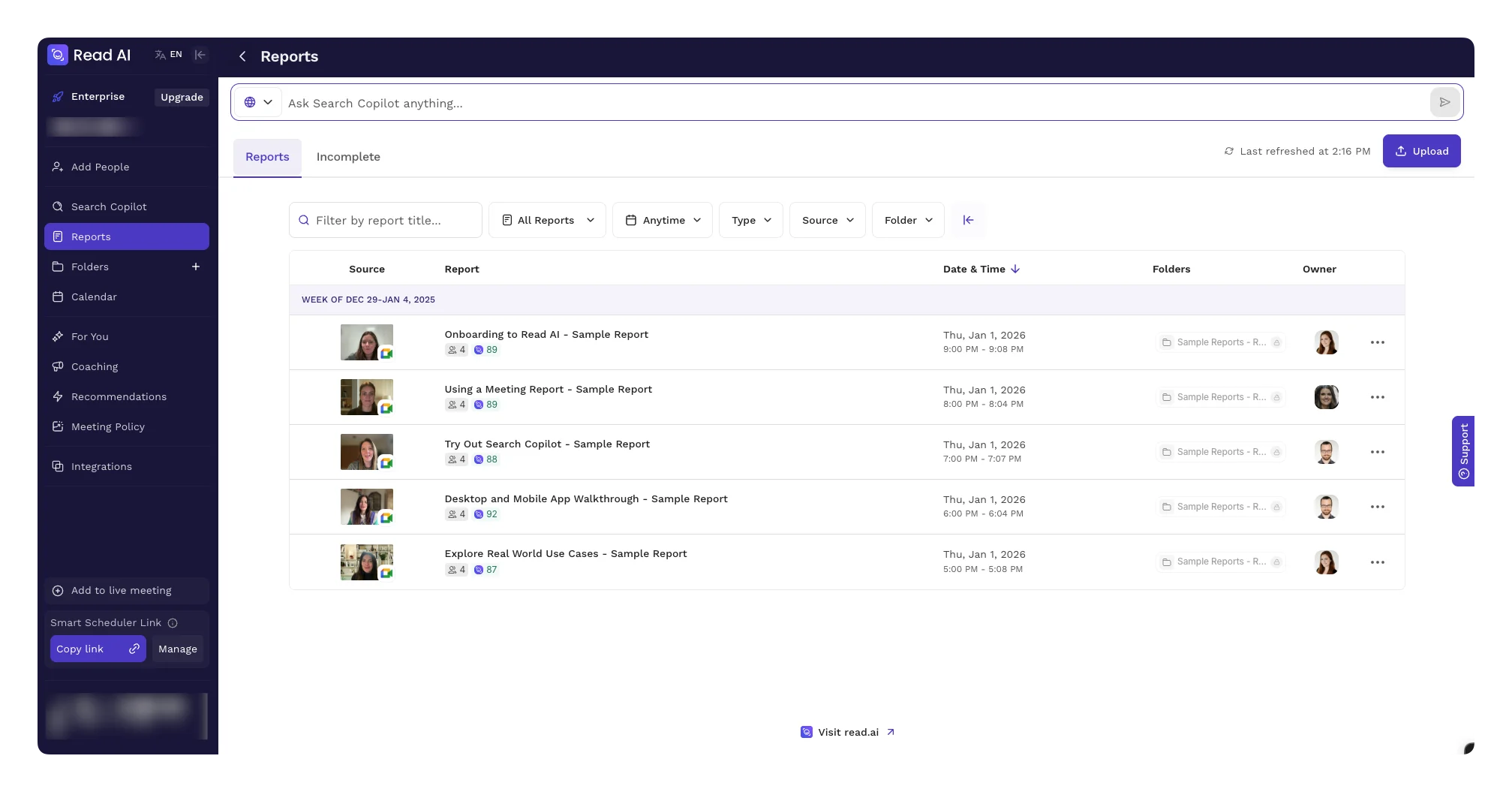
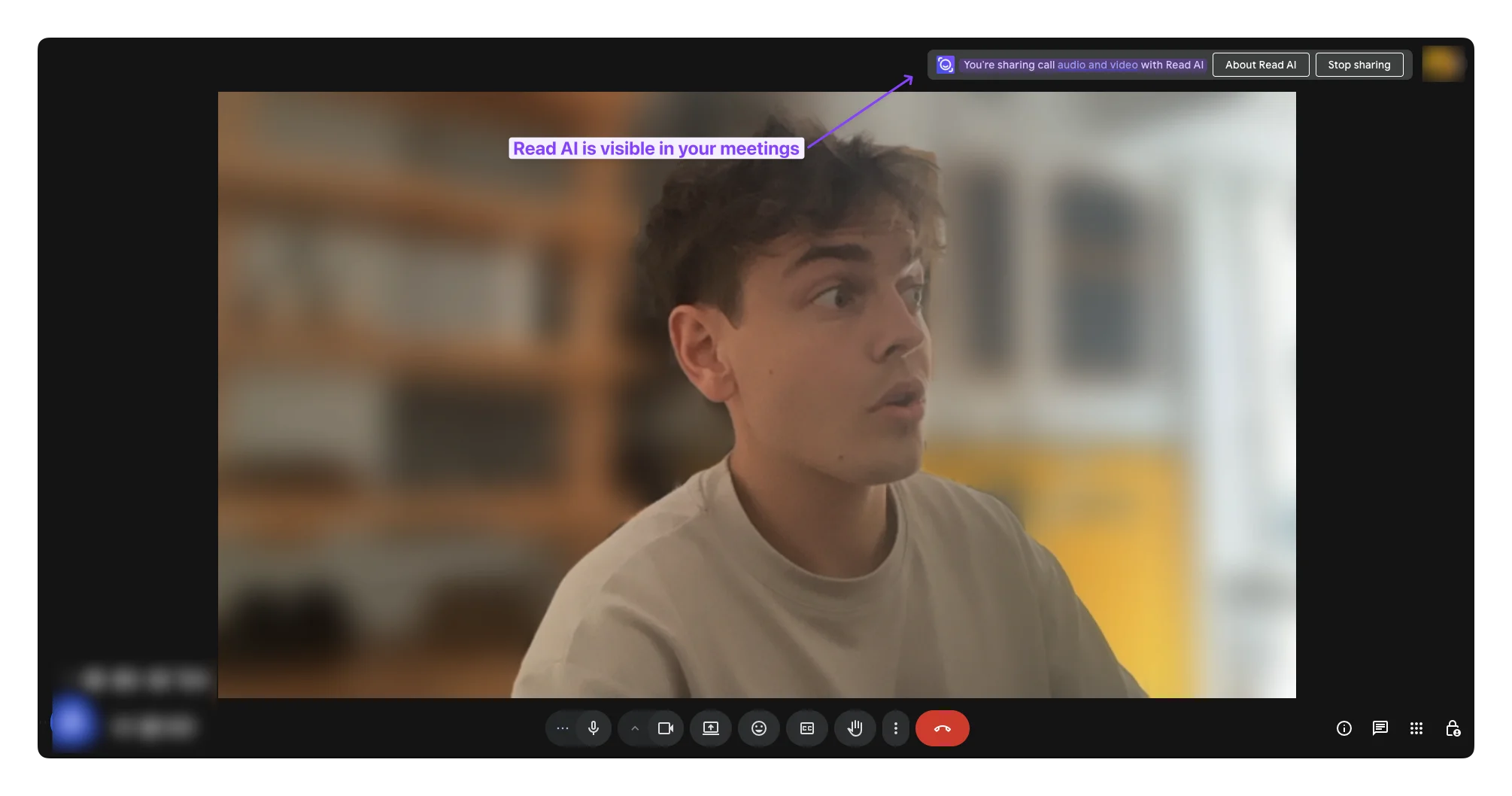
One detail to get right: Read joins every major platform as a visible participant by default. Read's marketing copy describes the Google Workspace add-on as "no browser extension or bot participant required," but that path requires manually launching Read from the Meet sidebar in every call. If you let Read auto-join via calendar sync (the way most people install it), the Assistant appears in your Meet, Zoom, and Teams participant lists as "Read AI Notetaker." Our Read AI review walks through this tradeoff in detail.
How to get AI meeting notes on each platform
Zoom (visible bot)
- Sign up at read.ai using your Zoom-linked email (Google or Microsoft SSO).
- Connect your calendar so Read can see upcoming Zoom calls.
- Optionally install the Read AI Zoom app for in-meeting transcription and talk-time.
- The Read Assistant joins each scheduled call as a participant.
Read flags this directly: "On Zoom, Read utilizes the recording notification to inform all meeting participants that measurement is occurring" (read.ai/zoom).
Google Meet (visible by default; one no-participant path)
Two routes, with very different in-call experiences:
Default (calendar-auto-join, visible Notetaker):
- Sign in at read.ai with Google SSO.
- Connect your calendar.
- Read auto-joins your scheduled Meet calls as a visible "Read AI Notetaker", same as Zoom and Teams.
Manual (Workspace add-on, no separate participant):
- Install the Read AI Workspace add-on.
- Grant Meet recording permissions.
- Open the Read AI panel from the Meet sidebar at the start of each call.
- Read uses the Google Meet API. "No browser extension or bot participant required," per the listing.
The add-on route is the only no-participant path Read offers. It does not auto-join. You have to start it in every call. Most users install Read via calendar sync and never use the add-on, which is why the default Meet experience matches Zoom and Teams (visible Notetaker).
Once Read is in the call, the Meeting Report goes well beyond notes: it also produces Speaker Coach metrics (talk time, sentiment, engagement) per participant:
Whether that's useful or invasive depends on your context (we go deep on the Speaker Coach tradeoff in our Read AI review).
Microsoft Teams (visible bot)
- Install Read AI from Microsoft AppSource.
- Sign in with your Microsoft 365 account.
- Connect your Outlook/Teams calendar.
- The Read Assistant joins each scheduled Teams meeting.
Read's own docs: "Read Assistant automatically joins your Teams meetings to generate meeting notes" (read.ai/microsoft).
If you want to stop Read from joining specific meetings, the help center walks through the controls: how to remove or stop Read from joining.
Read AI pricing in 2026
| Plan | Annual ($/user/mo) | Monthly | Free-tier-relevant features |
|---|---|---|---|
| Free | $0 | $0 | 5 meeting reports/mo, 1-hour cap, summaries, basic integrations, 20+ languages |
| Pro | $15 | $19.75 | Unlimited meetings (4-hour cap), 100 upload mins, premium integrations (Notion, Salesforce, HubSpot, Jira, Confluence, Zapier, webhooks), Workspaces |
| Enterprise | $22.50 | $29.75 | + audio/video playback, video highlights, 200 upload mins |
| Enterprise+ | $29.75 | $39.75 | + HIPAA, SSO/SAML, retention; requires 5+ licenses |
Source: read.ai/plans-pricing, verified 2026-05-28.
Annual billing carries a 25% discount across paid plans.
The free tier covers 5 meeting reports per month, capped at 1 hour each. No audio/video playback, no premium integrations, no file uploads, no Workspaces.
One thing worth flagging: if you let an Enterprise subscription lapse, you lose access to past recordings. Trustpilot reviewer Neven on January 21, 2026: "it seems one needs to have an active Enterprise subscription in order to access those recordings too" (permalink). Treat this as a hard constraint when picking a tier.
The catch nobody mentions: notes that never reach your workflow
Here's where setup-quality stops mattering and workflow-quality takes over.
Read produces a clean Meeting Report. Then what? The notes live in Read's dashboard and in your email. They push to Notion, Slack, Salesforce, HubSpot, Jira, Confluence, Zapier, or webhooks if you're on Pro and above (read.ai/plans-pricing). Premium integrations sound right on paper. In practice it means: you flip back into the platform you actually live in (your task manager, your calendar) and re-enter the action items, or you set up a sync that you have to babysit.
That gap shows up sharply in real user complaints. Chantz Yanagida on Trustpilot (Feb 17, 2026): "It tries to brute force its way into my meetings and confuse my clients into thinking that I authorized the recording" (permalink). Sam on Trustpilot (Oct 28, 2025): "I've deleted my account and manually removed Read.ai from every meeting but it still manages to join" (permalink). Chris Pringle on Trustpilot (Oct 30, 2025): "Without clearly making you consent, it grabs every meeting in your calendar and starts recording" (permalink).
The institutional response has been sharper still. The University of Washington's IT department disabled Read AI on Zoom and Teams, citing that "Read AI can join, transcribe, and summarize their users' online meetings even when the users are not in attendance, and without the awareness or consent of other attendees." Chapman University followed on August 13, 2025: "the use of Read AI is prohibited due to security, privacy, and institutional data risks," recommending native Zoom AI Companion instead "provided there is consent from all meeting participants to use it."
Read AI works fine for teams that have consented. The friction shows up when a tool produces notes but joins as a visible bot, lives in a separate app, and ships data on auto-attach. If you do want a notetaker and your team has agreed to it, the notes are good. If you don't, that's where the architecture conversation starts.
Bot vs botless: the architecture choice
Three architectures dominate AI meeting notes today.
Third-party bots: a visible participant joins the call. Read AI joins Zoom, Google Meet, Teams, and Webex by default (Read AI review covers this in depth). Fireflies ("Fireflies' bot shows up as 'Fireflies.ai Notetaker' about 15-30 seconds after the meeting starts"). Otter (OtterPilot is visible by default; see also Otter AI alternatives). Fathom on Zoom and Teams (Business Wire on Fathom's botless launch, Meet-only as of late 2025). tl;dv, Avoma round out the category. For head-to-heads see Fathom vs Otter and Fathom vs Granola.
Botless / device-audio: the tool captures system audio on your machine, no participant. Granola runs natively on Mac, Windows, and iOS without a bot. Krisp and Jamie do the same. Tactiq runs as a Chrome extension. Meetily is open-source and processes audio locally.
Native AI Companions: built into the meeting app, no third party at all. Zoom AI Companion is included free with paid Zoom Workplace plans (Pro $13.33/user/mo annual per G2's Zoom Workplace pricing). Microsoft Copilot's Intelligent Recap is native in Teams, but needs a Teams Premium or M365 Copilot license. Google Gemini's "Take notes for me" writes notes into Google Docs and requires an eligible Workspace with Gemini.
The honest read: if you already pay for Zoom Workplace, Teams Premium, or Workspace + Gemini, you have AI meeting notes for free. If you want a notetaker that works across all platforms with no bot in the room, the botless category is where to look. Read AI sits in the bot category across all four major platforms by default.
How Kai handles meeting notes
Kai is our AI executive assistant. We built it on the opposite architecture: botless capture, structured summary, and action items that route into tasks automatically.
In practice:
- Botless across Zoom, Meet, Teams, Webex, and Slack Huddles: no visible participant, no recording notification, no social friction. Kai records from your device instead of joining the call.
- Structured summary with speaker attribution: key discussion points, decisions made, open questions. Not a wall of transcript.
- Action items extracted with assignee, due date, and priority: surfaced in a triage workspace where you accept, reject, or edit each one. Then they flow into your tasks. Not your inbox.
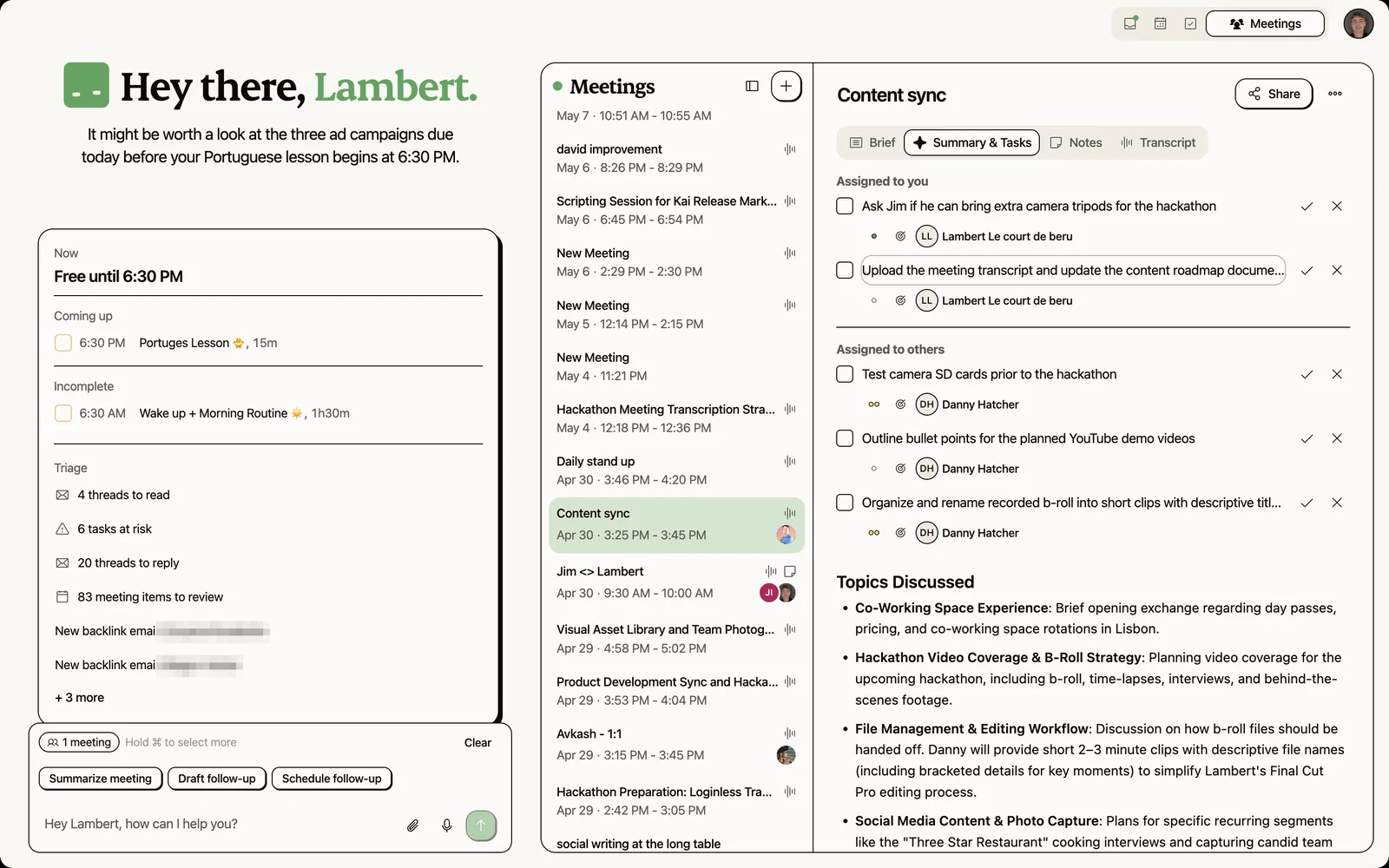
The point is the last 10 feet. Read AI hands you a Meeting Report. Kai hands you action items already in your task list, with assignee and priority, ready to accept or edit.
One honest limitation: Kai is newer than Read AI, with fewer integrations than the incumbents. If you need an AI notetaker today on a specific platform, the native AI Companions (Zoom, Teams, Meet) are the lowest-friction option. If your team has consented to a third-party recorder and the notes-to-tasks gap doesn't bother you, Read AI is a reasonable choice. If that gap does bother you, Kai is free to try.

When AI meeting notes are overkill
A few cases where the answer is "don't bother":
- Standups under 15 minutes. A summary you'll read once isn't worth a notetaker in the room.
- 1:1s where the manager already takes notes. Adding a bot changes the dynamic. David Gerding on Trustpilot (Dec 11, 2025): "Forces its way into every meeting. Yuck. Ick" (permalink).
- External calls where you haven't checked consent. Two-party-consent jurisdictions exist. Notetakers don't make that go away.
- Sensitive conversations. A reviewer on Trustpilot (Jan 14, 2026): "This thing almost seems illegal" (permalink). Treat the choice of whether to record as a real one, not a default.
The right test is whether the notes will change a decision or surface an action you'd otherwise miss. If not, skip the tool and use the meeting time better.
FAQ
Is Read AI free?
Yes, on a Free tier limited to 5 meeting reports per month with a 1-hour cap per meeting. Paid plans start at $15/user/month billed annually (Pro). See read.ai/plans-pricing.
Does Read AI work without joining the meeting as a bot?
Only one path avoids a separate participant: the Google Workspace add-on for Meet, started manually from the sidebar in each call. By default (calendar-auto-join, which is how most users install it), Read joins Zoom, Google Meet, Teams, and Webex as a visible "Read AI Notetaker." See our Read AI review for the visibility tradeoff in depth.
How accurate are Read AI's meeting notes?
Mixed depending on call quality and use case. Positive: "The transcription and the recording worked well" (Neven, Trustpilot, Jan 21, 2026, permalink). Negative: an independent reviewer at tl;dv reported the sentiment analysis being tone-deaf in a hands-on test (flagged for the phrase "you guys"). Verify accuracy on your own meetings before relying on the output for anything important.
Can I export Read AI meeting notes to Notion or Slack?
Yes on Pro and above ($15/user/month annual). Premium integrations include Notion, Salesforce, HubSpot, Jira, Confluence, Zapier, and webhooks (read.ai/plans-pricing). The Free tier does not include these.
What happens to my recordings if I cancel my subscription?
You can lose access. Trustpilot reviewer Neven (Jan 21, 2026): "it seems one needs to have an active Enterprise subscription in order to access those recordings too" (permalink). Worth knowing before picking a tier.
What are the privacy concerns with Read AI?
The biggest concern is that once Read AI is associated with your calendar, the Assistant can join, transcribe, and summarize meetings without you in attendance and without other attendees' explicit awareness. The University of Washington's IT department disabled Read AI on Zoom and Teams over this. Chapman University prohibited it on August 13, 2025. If you're using Read AI in a workplace context, check your IT policy before installing it.

What to read next
Read AI Review (2026): Features, Pricing, Pros & Cons
Hands-on Read AI review covering pricing, the visible bot tradeoff, the Speaker Coach controversy, and who should pick it over Otter, Granola, or Fathom.
One Year of Building With AI
Issue #016 of How We Grow: Jim's first year at Morgen, told through the models we built with, what each new one changed, and how the growth job looks when one person can ship a project in a day.
How We Built Onboarding Emails With Claude
Issue #015 of How We Grow: the 6 onboarding emails Lambert built for Kai, where their content came from, how Claude built them in Intercom without anyone clicking through it, and what the first numbers say.