

Key Takeaways
- Gemini's Take notes for me belongs to the organizer. Their plan decides whether it exists, only people inside the host's organization can start it, and an external guest gets the Doc only if the host shares it with "All invited guests, including those outside of my organization" (Google Meet Help, settings page).
- Free Gmail can't start Google's AI notes. Google AI Pro and Ultra subscribers have had them since 29 June 2026 for meetings they host, and from no sooner than 21 September, Business Standard and Plus default to automatic notes for meetings with three or more guests.
- Bots answer to the host's side, extensions and desktop apps answer to you. A host who turns off "ask to join" gets note-taker bots denied automatically (Google), while an extension or a desktop app needs nobody in the call to agree.
- Kai records a Meet call from its Mac desktop app with nothing joining it, so your seat changes nothing and telling the room is on you. More on how Kai handles meetings.
Plans, prices and Google's rules verified 2026-09-16 against Google Meet Help, the Google Workspace Updates blog, and each vendor's own help center and pricing page.
If you run the meeting on an eligible Google plan, use Gemini: Take notes for me is already inside the call, puts a pencil icon on everyone's screen, and writes a Google Doc to your Drive. On calls someone else runs, you get what they decide. Google ties eligibility to the organizer's plan, lets only people inside the host's organization start the notes, and gives an external guest a copy only when the host picks the sharing option that includes outsiders (Google Meet Help).
Note takers reach a call through one of four paths, and some roundups already sort them that way. For each path we answer the question they skip: in your seat (host, teammate of the host, or outside guest), who has to say yes? A missing calendar event makes it harder, and three in four of the Meet calls our author joins start from a link pasted into Slack, WhatsApp or LinkedIn, which leaves a calendar-driven tool nothing to start from.
Gemini's Take notes for me, seat by seat
In Workspace, Take notes for me comes with Business Standard, Business Plus, Enterprise Standard, Enterprise Plus and Frontline Plus, not Business Starter (Google's plan table). US list prices on an annual commitment are $7 per user a month for Starter, $14 for Standard and $22 for Plus (Workspace pricing). On personal accounts, Google AI Pro ($19.99 a month) and Ultra (from $99.99) have included it since 29 June 2026, "for meetings that you host" (Google, plan prices). Google AI Plus and free Gmail aren't on the list.
Your own plan only matters when you're the organizer, because "the meeting organizer must have the Workspace edition that includes 'Take notes for me'". The Doc (summary, decisions, next steps) always lands in the organizer's Drive, and the rest follows from Google's help pages (Take notes for me, settings):
| Your seat | Can you start the notes? | Do you get the Doc? |
|---|---|---|
| You host, on an eligible plan | Yes | Yes, it's in your Drive |
| You host, on free Gmail, Google AI Plus or Business Starter | No, and nobody else in the meeting can | No notes are written |
| A teammate hosts, same organization | Yes, if their plan has it, unless host controls are on (then only hosts and co-hosts) | Yes, if you're on the invite and the host keeps the default, "Invited guests in my organization" |
| A client hosts | No, external guests can't start it | Only if their host picks "All invited guests, including those outside of my organization" and you're on their invite |
The last row is where guests get caught. Google defines invited guests as "all guests on the Calendar invite, not guests who actually attended", so a link forwarded in a DM doesn't put you on the list, even under the widest setting. Zoom's AI notes have the same host problem. Switching it on from the wrong seat doesn't rescue you either. One attendee turned it on during a call where "the other person sent the link", and got this:
“Gemini generated something, but it was completely unusable: a 5-line generic summary with no actual content from the conversation. The real transcript was lost.”
Aida Bermudez, Google Meet Community, 2026-04-30Some limits apply in every seat. Notes work in eight languages, one per meeting, and Google recommends them for meetings of 15 minutes to 8 hours. They don't reach back before they were started and fail below 50 spoken words (admin help). Next steps don't become Google Tasks on their own: you'd ask Gemini in the side panel (Google Workspace Updates), or assign each one by hand in the Doc.
What changes from 21 September
From no sooner than 21 September 2026, Business Standard and Business Plus organizations get automatic note-taking on by default for scheduled meetings with three or more guests, host included (Google Workspace Updates, admin help). Admins can opt out and users can override it. Enterprise, Frontline Plus and Google AI Pro for Education stay off by default. For guests, more client calls will produce notes without anyone clicking, and those notes still sit in the host's Drive under the host's sharing choice.
 Did you know?
Since August 2026, a Take notes button on the Meet home screen records an in-person conversation through the device itself, on the same paid plans (Google Workspace Updates). Google's April announcement said it would capture Zoom and Teams calls too (Google Workspace blog), but the help page only describes in-person meetings (Google Meet Help).
How to turn on Take notes for me
In a meeting, on a computer (Google Meet Help):
- Go to meet.google.com and join the meeting.
- Click Take notes for me at the top right.
- Optionally open the settings to choose recipients, length, sections and language.
- Click Start taking notes.
Ahead of time, tick Take notes with Gemini under Video call options, then Meeting records, in the Calendar event, or turn on automatic notes for meetings you host in Meet's settings (settings page). Automatic notes wait until a host or co-host joins on the web (Google Meet Help).
 Tip
TipOn a client's call, ask before it starts. Someone on their side has to put you on the Calendar invite, and their host or a co-host has to pick "All invited guests, including those outside of my organization". Afterwards, the most they can do is share the Doc from their Drive by hand.
Four ways a note taker gets into a Meet call
Gemini works inside Meet itself. A bot joins as a participant and shows up in the people list. A browser extension works on the Meet tab in your own browser, reading captions or recording the tab's audio. A desktop app records your computer's microphone and system audio, and Meet never sees it. Each path moves the yes to a different person:
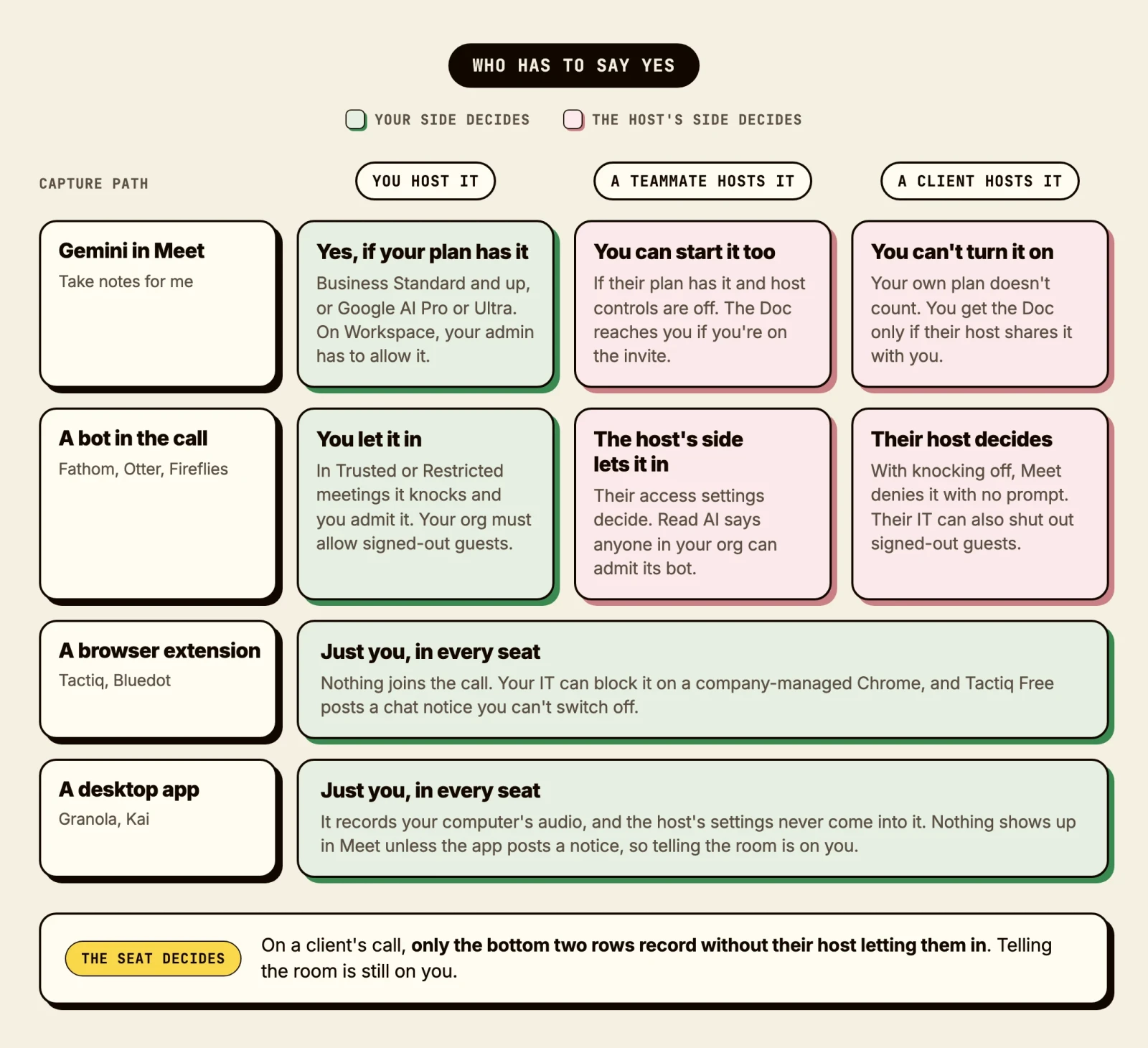
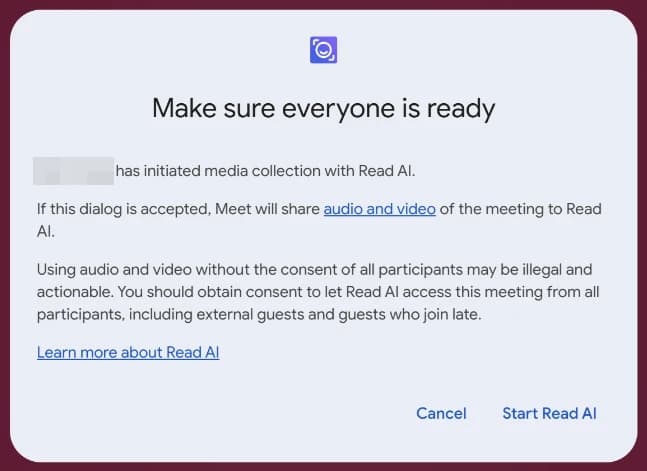
A fifth route looks like the first. Read AI's Meet add-on and Fireflies' "Google Meet SDK" option record through Google's Meet Media API, with no participant tile, but an admin in the host's organization has to allow it, someone from that organization has to consent, and every participant can switch it off (Google Workspace admin help). Google's developer docs still call it a Developer Preview (Google for Developers). On a client's call, it's no easier than a bot.
The note takers, by capture path
What follows comes from each vendor's help center and pricing page, checked on 2026-09-16, not from running every product on a Meet call. Links go to our own reviews.
Bots in the participant list
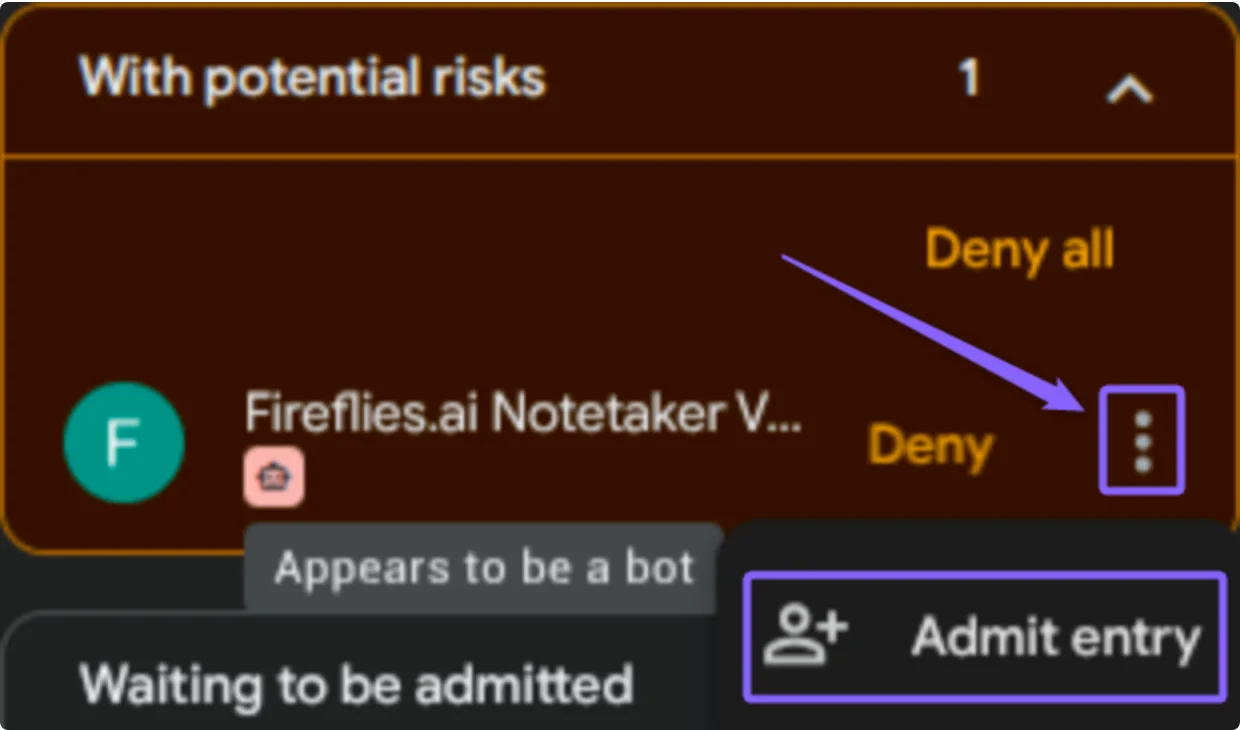
Bots join like an uninvited guest, so the host's access settings decide. In Trusted and Restricted meetings they wait to be admitted, and since 24 March 2026 Meet has split join requests into two queues, the second defaulting to deny (Google Workspace Updates). Google's post never mentions bots; vendor help centers (Metaview, Fireflies) describe theirs landing there labeled a "potential risk". A host who unticks the ask-to-join box ("Anyone with the meeting link can ask to join" in Trusted meetings) goes further, and Google says "third-party bots, like note takers, that attempt to use 'Ask to join' are automatically denied access" (Google Workspace Learning Center).
On a client's call, that yes belongs to their host, or their IT admin if they block guests who aren't signed in. Whoever sent the bot, it carries a person's name, and the room reads it as theirs:
“It appears to my clients and colleagues that I have intentionally brought a recording bot into the room, which affects my professional reputation.”
Graeme Ferreira, Google Meet Community, 2026-01-19, on an auto-joining bot labeled with his name Fathom
 Otter.ai
 Fireflies
 Read AI
Fathom
Fathom's help center says its bot joins as "NAME's Fathom Notetaker" and records only while you're on the call yourself, working through its desktop app and Chrome extension on macOS or Windows. A Meet link pasted into the desktop app joins even with no calendar event, which suits the DM-link case. On a Mac, for English-language meetings, Fathom 3.0 can capture audio and a transcript without the bot. More in our Fathom review.
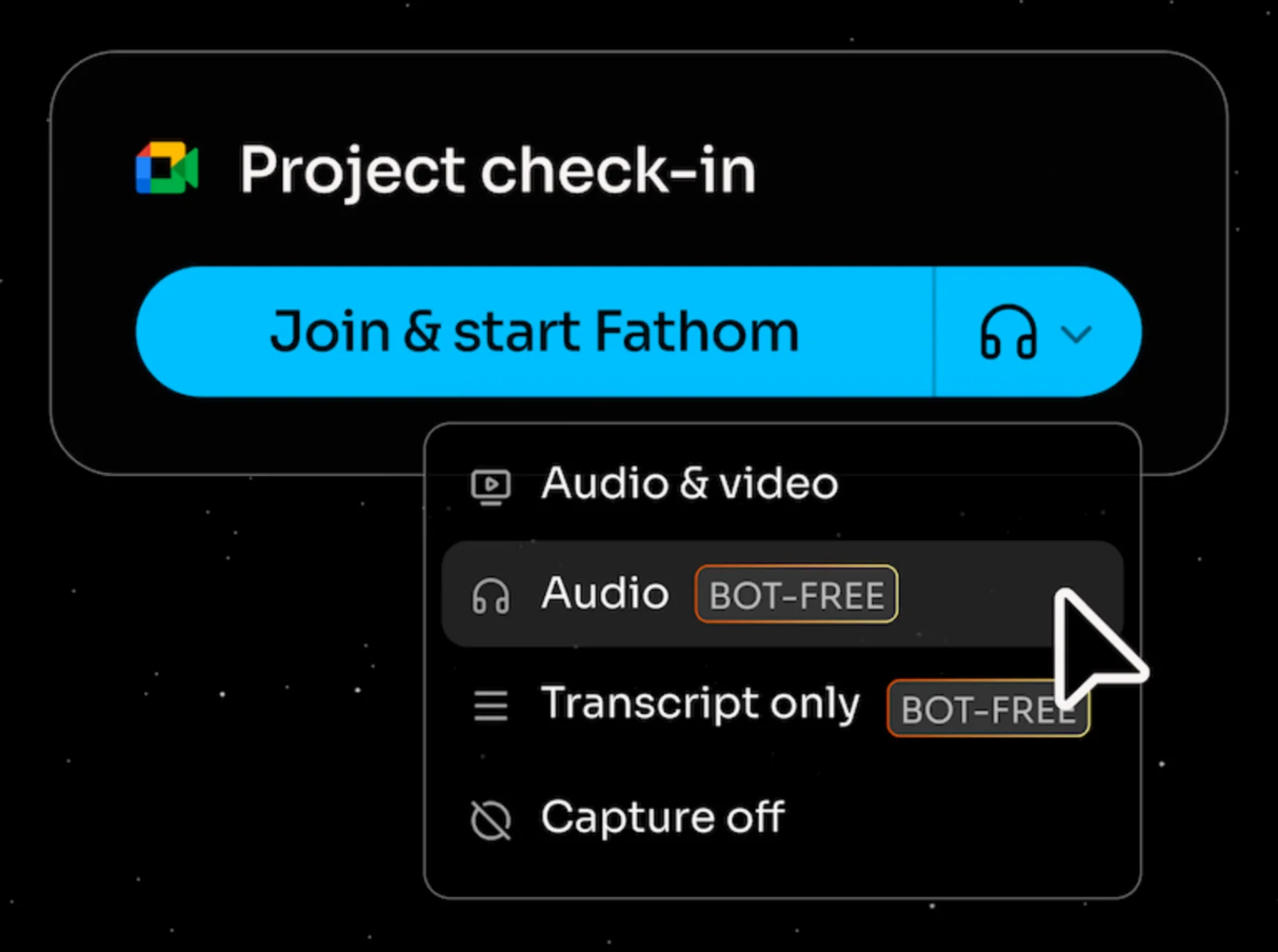
- Who has to agree: the host's side admits the bot; the Mac bot-free mode asks nobody.
- Free and paid: unlimited recordings, advanced summaries on 5 calls a month. Premium is $20 per user a month, or $16 billed annually.
- Action items: a Premium feature, syncing to Asana (its only native task manager) for items assigned to you.
Otter
Otter's help center says its bot joins as "[Your Name]'s Notetaker (Otter.ai)", can attend without you, and can't sign in to get past guest restrictions. On Meet, its Chrome extension also offers "Record on my device instead", with no bot. See our Otter review and Fathom against Otter.
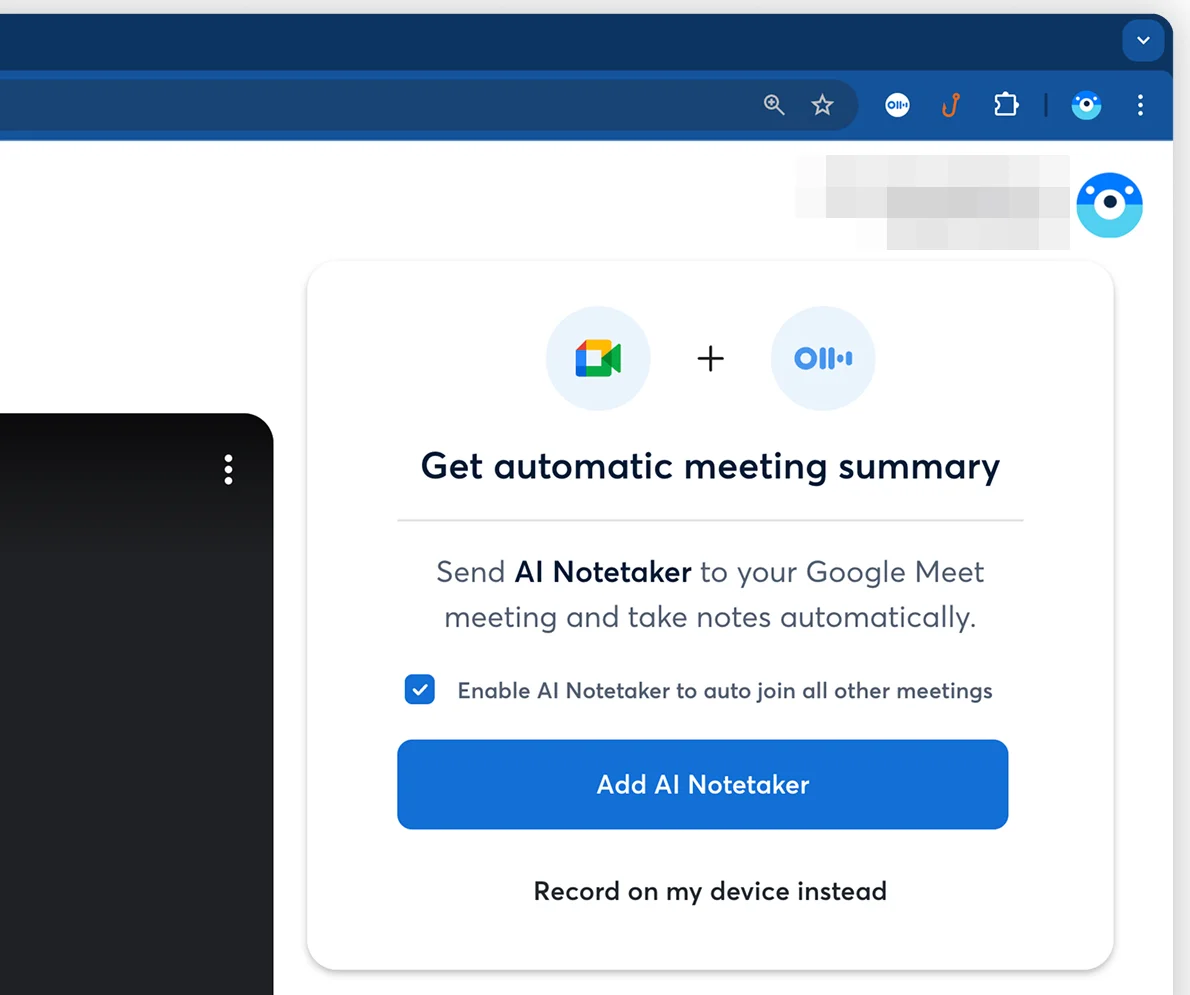
- Who has to agree: the host's side for the bot, nobody in the call for on-device recording.
- Free and paid: 300 transcription minutes a month, 30 minutes per conversation. Pro is $16.99 per user a month, or $8.33 billed annually.
- Action items: an Action Items list inside Otter, showing items assigned to you, with a copy button.
“I downloaded Meeting Notes and Otter AI to be note takers during my Google Meet meetings. I want to delete these from my Google Meets, but they pop up in every meeting as attendees wanting to be let into the meeting.”
Natasha Shull, Google Meet Community, 2026-07-23Fireflies
Fireflies joins as "Fireflies.ai Notetaker", records without you, can't be hidden, and waits up to 10 minutes in a Meet waiting room. It also has three ways in without the bot: a Chrome extension for Meet audio, a desktop app with generic Speaker 1 and Speaker 2 labels, and the Media API option above. It's one of the tools in our roundup of Otter alternatives.
- Who has to agree: the host's side for the bot, the host's organization for the SDK option, nobody for the extension or desktop app.
- Free and paid: accounts created from 1 September 2026 get 3 transcriptions unless auto-join is on, which rewards sending more bots. Pro is $18 per seat a month, or $10 billed annually.
- Action items: can become Asana tasks automatically, assigned by the owner's email.
Read AI
Read AI's own help center says it doesn't recommend its bot on Meet "due to recent changes made by Google", and points to its botless add-on on the Media API. That add-on still needs someone from the host's Workspace to approve Google's consent prompt, and fails on watermarked or encrypted calls. On another organization's call, Read warns, only that organization's people may be able to admit its bot. More in how Read AI's notes work on Meet and our Read AI review.
- Who has to agree: the host's organization, on both routes.
- Free and paid: 5 transcripts a month, up to an hour each. Pro is $15 per user a month billed annually, or $19.75 monthly.
- Action items: on paid plans, a button next to each item creates an Asana task.
Browser extensions on the Meet tab
Extensions ask nobody in the call. They run on your copy of the Meet tab, and even Meet's captions "are turned on only for you" (Google Meet Help). The yes sits with you and, on a managed work browser, your admin, who can restrict Chrome to approved extensions (Chrome Enterprise help). The costs: desktop browser only, the laptop has to stay awake, and a change on Meet's side can break them.
 Note
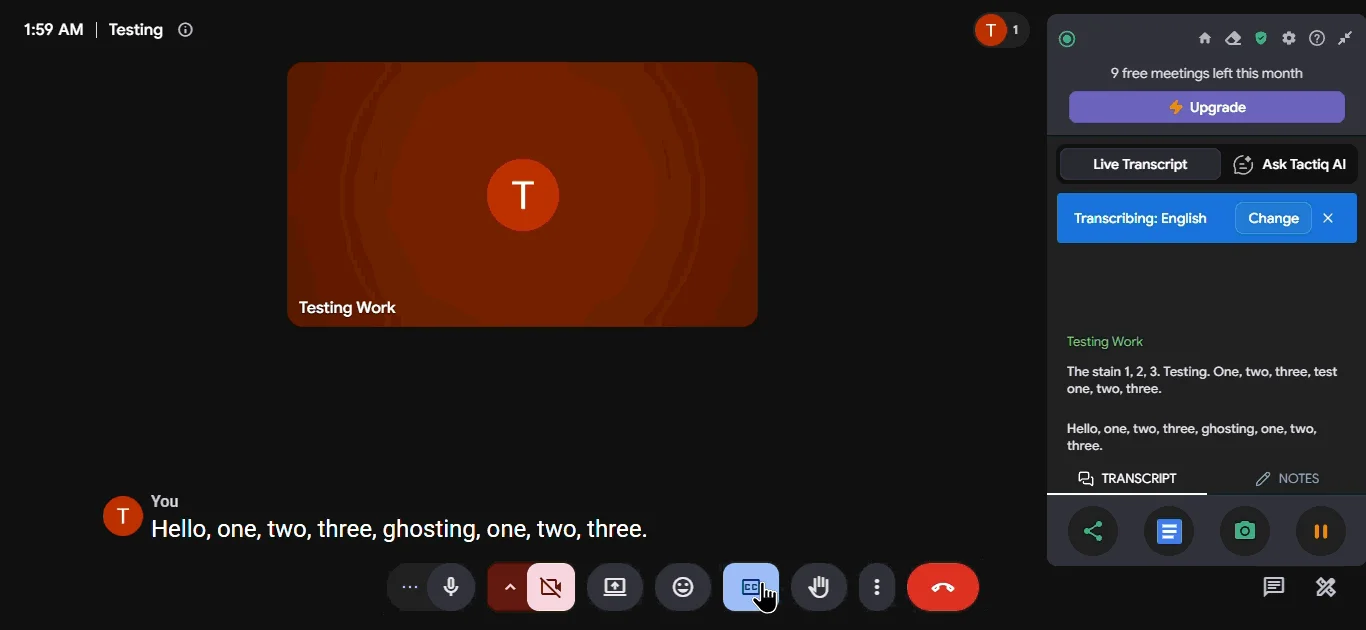
NoteNo bot doesn't mean nobody knows. Tactiq's free plan posts a message in the Meet chat when it starts, and free users can't turn it off. Bluedot's extension can post one too, and lets you switch it off. What the call sees is a vendor setting, not a Meet one.
Tactiq
Tactiq's install guide says it "uses the meeting platform's captions to create the transcript". We opened its current Chrome package (version 3.1.6983) on 16 September and found no audio-capture code; it reads the captions channel Meet already uses. It transcribes one language at a time, and its status page logged three Meet transcription incidents in the 12 months to September 2026, the latest on 2 September.
- Who has to agree: nobody in the call. On the free plan, the chat notice announces it.
- Free and paid: 10 transcripts and 5 AI credits a month, then preview-only transcripts. Pro is $8 per user a month billed annually.
- Action items: a Tasks tab inside Tactiq, assignable only to your Tactiq team, with workflows to tools like Linear and Notion.
“it is a good tool when it works. but its not reliable. i have started setting time before each meeting to make sure tactiq is working.”
hind akil haidar, Chrome Web Store review, 2025-10-06Bluedot
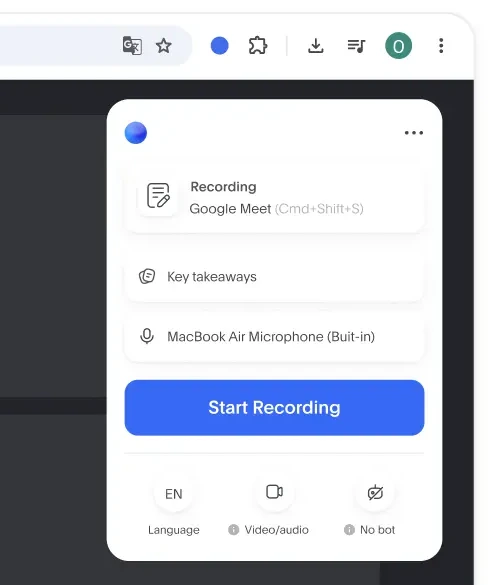
Bluedot's extension records "what is visible in the main Google Meet tab" and transcribes in over 100 languages, two per transcript. It also sells a bot that has to be admitted, and a desktop app that records Meet audio only.
One store review shows the failure any recorder on your side has to guard against:
“Everything worked fine until the most important interview (via google meet). The app did not record audio from the other party - only my voice.”
Hel, Chrome Web Store review, 2026-03-11- Who has to agree: nobody in the call for the extension, the host's side for the bot.
- Free and paid: 5 meetings over the life of the account. Basic is $14 per user a month billed annually, or $18 monthly, audio only with a one-hour cap.
- Action items: notes can save to Notion after each recording, and the follow-up email opens as a Gmail draft. More in Bluedot against Granola.
We built one too, so weigh this accordingly. Kai for Chrome is a free extension that records the tab's audio on your device, not the captions: one click or Cmd+Shift+K, a live transcript in Chrome's side panel, no account, English only. The Chrome Web Store's 100 MB package cap forced the small whisper-base speech model, and the summary from Chrome's Gemini Nano reads roughly the first hour. Our 1,006 recordings in 2026, across browser tabs (Meet, Zoom, Teams, Gather), ran a median of 26 minutes, and one in ten went past 69 minutes.
Desktop apps on your computer
A desktop app records your microphone and system audio through the operating system, so no host has anything to admit or block, and it behaves the same in all three seats, DM links included. The yes comes from your side: OS permissions, sometimes your own admin, and the people in the call only if you tell them. You give up names: device audio separates you from everyone else, and naming speakers on Meet usually means reading the Meet tab.
 Granola
 Wispr Flow
Granola
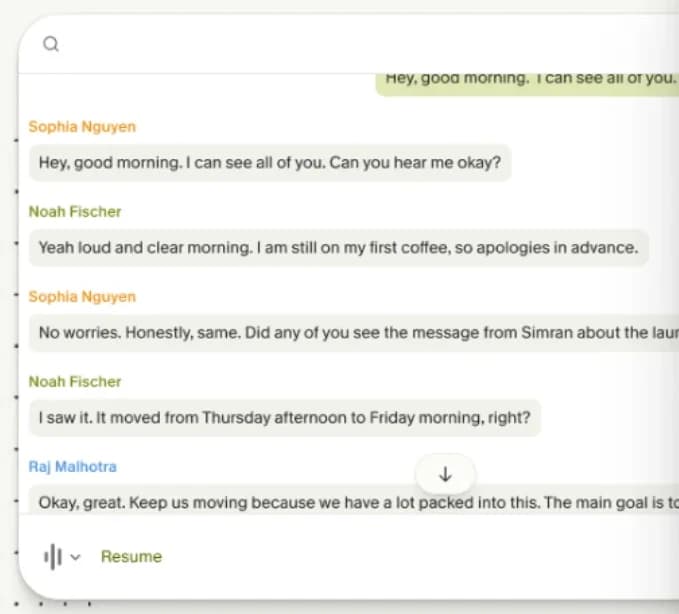
Granola captures your mic and system audio from its Mac or Windows app, with no bot; its web and phone apps can't capture a Meet call. Transcripts say Me and Them unless you add its browser extension, which reads Meet's speaker names without recording. Notices to participants are opt-in. More in our Granola review and Kai compared with Granola.
- Who has to agree: nobody in the call. On a managed browser, your admin may need to deploy the extension.
- Free and paid: Basic keeps the last 30 days of notes. Business is $14 per user a month.
- Action items: stay in the note, with Slack on free and Notion, CRMs and Zapier on paid plans.
“No bot joins the call, which sounds cosmetic until you're on a founder call and a third participant with a robot avatar appears. ... Speaker attribution on a four person call is still a coin flip”
Asad M., Product Hunt review, 2026-09-02Wispr Flow
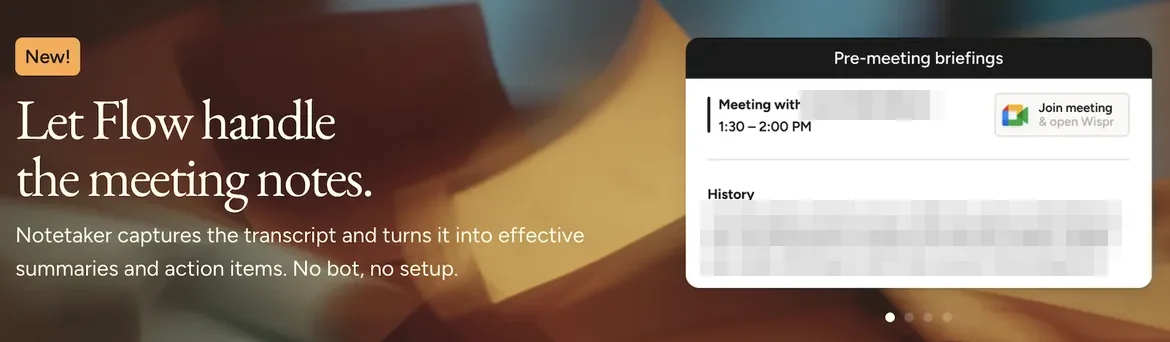
Wispr Flow's Notetaker captures on the device, on Mac (macOS 13 or later) and, since 15 September 2026, Windows, and reads names off the Meet tab in Chrome, Edge or Brave. It speaks up for you: on Meet in Chrome it can type a "using Wispr Notetaker" notice into the chat, listed as on by default in Wispr's admin controls. On team plans the yes is your own admin's. More in our look at Wispr Flow's Notetaker.
- Who has to agree: nobody in the call, plus your admin on a team plan.
- Free and paid: a weekly meeting limit Wispr doesn't publish. Pro is $15 per user a month, or $12 billed annually.
- Action items: in the summary with owners, reachable from Claude or ChatGPT over MCP, with no native task-manager push we could find.
How Kai captures a Google Meet call
Kai sits on the device path. The desktop app records your microphone and the call's system audio, and nothing joins the call, so your own meeting, a teammate's and a client's DM link all record the same way, with nobody else asked. Calendar meetings with a video link get a Join & transcribe prompt, and when a call app takes your microphone, browsers included, the app offers to record, and because it watches the browser rather than the calendar, that also covers a Meet tab with no event behind it.
Since 11 September 2026, the controls live at the top of your Mac (what's new). While Kai records, the notch reads "Taking notes", and reaching for it lets you stop, or stop and switch to the next meeting. When the summary is written, it says "Summary ready", and one click opens it.
During the call, the notch also catches what you commit to. Say you'll send something and it appears there as a follow-up or a task you can capture on the spot, and a task you notice mid-call can be handed to Claude.
Afterwards, Kai writes a summary (Topics Discussed, Takeaways, Decisions Made, Next Steps), turns action items into suggested tasks with an assignee, a priority and a due date that wait on the meeting until you add them to your task list, and drafts the follow-up email from your connected mailbox for you to send. More on action items that become tasks, and Kai compared with Otter if you're weighing it against a bot.
Where Kai stops
- The web app hears only your microphone. Meet already runs in a browser, which makes Kai's web app the obvious tab to open beside it, and on the web Kai captures your mic, not the other side. In practice, some of our early web recordings came back with only our own lines, and our author now records every call from the desktop app.
- Recording the other side of the call needs the Mac desktop app on macOS 14.2 or later, and the notch controls are Mac-only too.
- Speakers come back as You and Them, not names. Every remote voice shares the Them label, so on a four-person call you work out who's who yourself.
- Nobody in the call can tell you're recording. No bot, no tile, no chat message, and the notch is hidden from screen shares by default. That's why it works on a client's call, and it makes disclosure your job: Kai shows a consent reminder with a message to paste into the chat, and our guide to asking for consent before you transcribe covers where the lines fall.
The law doesn't care which path you picked: California requires the consent of all parties to a confidential communication (Penal Code 632), and several other states do the same (Hunton).
“It doesn't matter if you don't use a note taker AI, if even one person on the call uses one. Their tool doesn't notify you and usually the person doesn't either.”
halfcat, Hacker News, 2026-08-10
How to pick
Find the Google Meet note taker your seat allows
Five questions, weighted by the seat you're in on most of your calls. We recommend Kai where it fits, and Google's own notes or another kind of tool where they fit better.
Question 1 of 5Who usually runs the Meet calls you need notes from?
The organizer's plan decides whether Google's own notes exist at all, so answer for the calls that matter most.
If you host on Business Standard or Plus, Enterprise Standard or Plus, or Google AI Pro, turn on Take notes for me and choose who gets the Doc. If your calls are internal and a bot in the list is normal, a bot tool adds the Asana push Google doesn't document. If you're usually the guest, only an extension or a desktop app records without asking the host. Around any of them, see taking meeting notes by hand and preparing for a meeting with AI.
Frequently asked questions
How do I activate the note taker in Google Meet?
Join from meet.google.com on your computer, click Take notes for me at the top right, and click Start taking notes. It only works when the organizer is on an eligible plan (Business Standard or Plus, Enterprise Standard or Plus, Frontline Plus, or Google AI Pro or Ultra), and with host controls on, only hosts and co-hosts can start it.
Is there a note taking app for Google Meet?
Yes: Google's own Take notes for me, bots such as Fathom and Otter, browser extensions such as Tactiq and Bluedot, and desktop apps such as Granola, Wispr Flow and Kai. Which one works depends on who hosts the call.
Does Fathom work with Google Meet?
Yes. Fathom's help center says its bot joins Meet through its desktop app and Chrome extension on macOS or Windows and records only while you're on the call. Like any guest bot, it waits to be admitted in a Trusted or Restricted meeting. On a Mac, for English-language meetings, a bot-free mode captures audio and a transcript.
How do I get AI to take notes during a meeting?
If you host on an eligible Google plan, start Take notes for me. If someone else hosts, ask them to admit a bot, or run an extension or desktop app on your side and tell the others you're recording.
Can I use Take notes for me on a free Gmail account?
No. It needs an eligible Workspace edition or Google AI Pro or Ultra. On a free account you can still receive notes when an eligible host shares them with all invited guests and you're on the invite.
Can a Google Meet host keep AI note taker bots out?
Yes. A host who unticks the "ask to join" option turns off knocking, and Google says note-taker bots that try to knock are then denied automatically. Extensions and desktop apps never join the call, so the setting doesn't reach them.

What to read next
We Launched Our Startup, Then Questioned Everything
Issue #019 of How We Grow: 3 weeks after our Product Hunt launch, 182 sign-ups in a week and still 18 people using Kai 3 days a week. Why Jim stopped our ads, the calls that replace them, and the value day, our new North Star.

The Lab Behind Our Instagram
Issue #018 of How We Grow: the content lab Lambert built behind our Instagram. 800 clips Claude tags second by second, reels Claude edits from them, every idea tested 3 ways on people who don't follow us, and why 570,113 views haven't been turned into customers yet.
Inside Our Product Hunt Launch
Issue #017 of How We Grow: David joins us two days after Kai's Product Hunt launch to talk about what a launch is for when you're already live, why finishing fifth was useful, and the Instagram trick that took our account from 300 to 700 followers.