
Key Takeaways
- Only the host can start, stop, edit or delete a Zoom AI meeting summary. Participants get an "Ask host to start Zoom AI" button and nothing else (Zoom KB0058013).
- The free Basic plan does get AI notes, capped at 3 hosted meetings a month, so the old "you need a paid plan" answer is out of date (zoom.com, Verified 2026-08-19). Note the unit Zoom counts in: meetings you host.
- Even when a summary exists, two groups never receive it, anyone who joined from a forwarded link and anyone who wasn't signed in, and there's no documented export for the people who do get it (Zoom KB0058013, KB0080366).
- For calls you don't host, you need something that captures your own device rather than asking Zoom's permission. That's how Kai records meetings, on any platform your machine can hear, with nothing joining the participant list.
Zoom meters AI meeting notes in units of meetings you host. The free plan's allowance reads "Meeting summaries (for 3 hosted meetings per month)" (zoom.com), and the plan comparison lifts that to Unlimited from Pro upwards (zoom.us/pricing). What no plan changes is who holds the switch: only the meeting host and co-host can start a summary, and only the host can edit or delete it afterwards (Zoom KB0058013).
That matters more than it sounds, because the summaries are good. We hosted an eight-minute Zoom call on a free Basic account on 19 August 2026 and let Zoom write the recap, and it came back structured, readable, and correct about who had agreed to do what. The problem isn't the writing. It's that your meeting memory ends up with holes in exactly the places you'd want it most, the calls other people run, because Zoom's rule is that only the host and co-host can start a summary at all (Zoom KB0058013).
What Zoom's AI notes actually produce
A finished Zoom summary is four blocks, not the single paragraph most people picture. There's a title bar, a Quick recap paragraph, a bulleted Next steps list where each bullet opens with a person's name, and a Summary section broken into topic sub-headings (Zoom AI whitepaper).
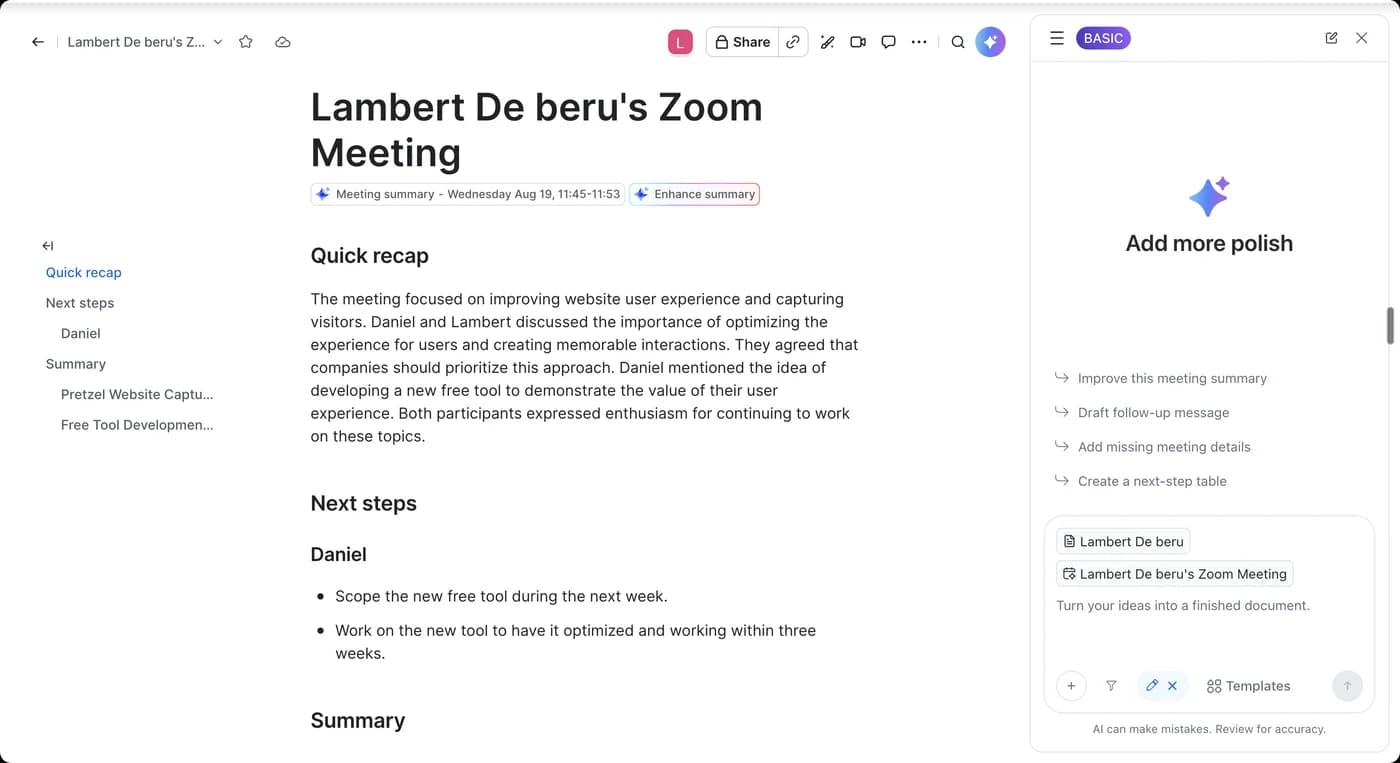
The summary always arrives by email, and lands in Zoom Chat too if the account allows meeting chat before and after the call. It's also readable from the web portal under My account > Summaries, and from Zoom Hub (Zoom KB0058013). One detail in Zoom's own instructions for reading a summary inside the desktop app tells you where this is going: it says to select a past meeting "that you hosted" (Zoom KB0080366).
During the call there's a second surface, a side panel that answers questions about the conversation so far. Zoom ships preset prompts like "Catch me up", "Was my name mentioned?" and "What are the action items?" (Zoom KB0057748). We asked it whether our name had come up and it answered with numbered citations pointing back at timestamped lines in the transcript, which is genuinely useful when you want to check what was actually said rather than take the recap on trust.
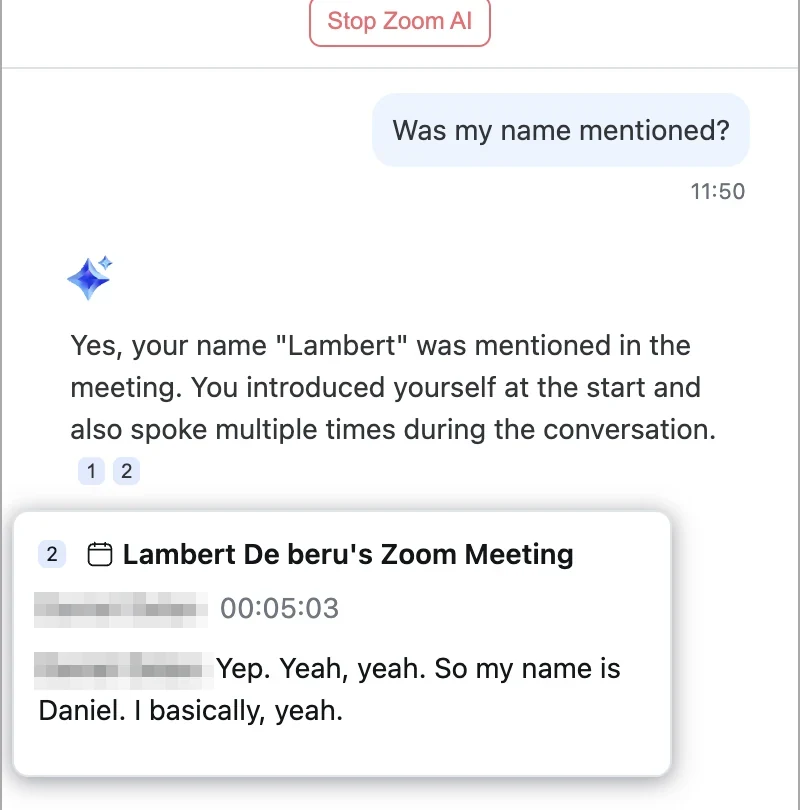
Asking questions is desktop-only. Hosts can start and stop the summary anywhere, but "hosts and participants can currently only ask questions on the desktop app" (Zoom KB0057748).
What you can't do is get the summary out. Zoom lists exactly four things you can do with a finished one: review it, edit it, switch templates, or open it in Zoom Canvas (Zoom KB0080366). No export, no download, no PDF. The one documented workaround comes from a university IT team rather than Zoom: open the summary, click "Open in docs", then pick Word or PDF from the more menu (York University).
How to turn on AI meeting notes in Zoom
There are four levels between you and a summary, and a setting can be locked at any of them. Zoom states the rule plainly: admins can enable or disable AI for the whole account or for specific groups, and "individual users can also enable or disable some AI features for their own use, if not locked by an admin" (Zoom KB0057623).
 Note
NoteZoom is mid-rename, so the menu you're looking for may not match the guide you're reading. "Zoom AI" and "AI Companion" both appear in support articles Zoom updated this month, and its marketing pages now rewrite the old name to "ZoomMate" in the browser. Screenshots taken today can legitimately show either name. If a path below doesn't match your admin console, look for the other name at the same level rather than assuming the setting moved.
As an admin, the toggle lives at Admin Center > Settings > Zoom AI > Meeting, under "Meeting summary with AI" (Zoom KB0057960). Group-level is the same thing one layer down, through Admin Center > Users > Groups, then "Edit product settings" in the General configuration section, then the Zoom AI tab. That middle step is easy to miss, and skipping it means never finding the toggle.
As a user, go to My account > Settings > Zoom AI > Meeting. If the switch is greyed out, it's locked above you and you need your admin (Zoom KB0057960). The same page carries "Auto-start when meetings start", which is the setting worth having, because Zoom notes it "does not require the host to be present" (Zoom KB0058013).
In the meeting, on desktop, it's five steps (Zoom KB0058013):
- Start the meeting as the host.
- Hover the Zoom AI icon in the top-right corner.
- Tick the Meeting summary checkbox.
- Optionally tick Generate transcript.
- Click Start Zoom AI.
Mobile uses toggles instead of checkboxes and calls that fourth option "Retain meeting transcript" rather than "Generate transcript", in the same support article. Zoom Rooms hides it somewhere else again, under More, then Start Summary.
 Tip
TipTick the transcript box if you have the option. It's what lets you re-run the summary against a different template later, and without a retained transcript the summary can't be regenerated at all (Zoom AI whitepaper). Retaining transcripts is itself a separate setting your admin controls, and on some accounts Zoom asks you to open a support ticket to switch it on (Zoom KB0076631).
Who ends up with the notes
This is the part the setup guides skip. Starting a summary is a host power, and so is everything that happens to it afterwards.
Only the host and co-host can start or stop the summary from the in-meeting controls. Only the host can edit it. Only the host can delete it, and Zoom warns that deleting "cannot be undone" (Zoom KB0058013). As a participant, the button you get is "Ask host to start Zoom AI", and if nobody in the room has the rights, your request goes to an admin by email.
“If you're the account owner, you can turn it off. But participants can't do anything about it. I agree, it sucks, which is why we have AI disabled in our own account.”
u/rabbithasacat, r/Zoom, 2026-03-31Even when the summary does exist, two whole groups of attendee are excluded from it by rule. Anyone who joined through a forwarded link "will not receive the summary, as they were not on the original invitee list", and anyone who joined unauthenticated gets nothing "as no email address was associated with their presence in the meeting" (Zoom KB0058013). Both of those describe a normal working day.
There's no technical way around it either. Zoom's API for fetching a summary is gated on the host's account, not the caller's: "the host's Meeting Summary with AI Companion user setting must be enabled" (Zoom Meetings API). A paying attendee with developer access still can't pull a summary from a meeting they didn't run.
What participants do see is a signal that something is on. The AI icon lights up, and by default that indicator is the whole of the notice (Zoom AI whitepaper). Admins can turn on a much harder gate that holds people's camera and mic off until they accept a notice, with 90 seconds to accept or leave (Zoom KB0082011), but that's a setting somebody has to go and switch on.
 Did you know?
The reason people still ask whether Zoom trains AI on their calls goes back to August 2023, and the story is usually told wrong. Zoom's terms at the time carried two separate clauses, and the one that permitted machine learning covered service-generated data rather than your audio and video. A viral post collapsed the two, claiming Zoom would train on "audio, face and facial movements, even private conversations" with no opt-out (CBS News). Zoom's first fix, on 7 August, promised not to train on customer content "without your consent". Four days later it dropped the condition entirely, and that unconditional version is still the live one (Zoom Terms of Service, effective 11 August 2023).
The community's answer to all of this is to go and ask the person running the call. One user wanting summaries from meetings they attend was told to have the host "go to the AI Companion tab in their settings and check the box that says automatically share summary with all meeting invitees" (u/OSiRiS-NZ, 2026-01-13). That works, once, per host, assuming they're willing. It's not a system.
Admins are the other half of the story. Plenty of people discover the feature isn't theirs to control:
“ours got turned on by IT at some point, definitely not a default thing on our end. worth checking with whoever manages your zoom account because it might be an admin level setting you cant even touch yourself.”
u/datboifranco, r/Zoom, 2026-06-30A few conditions kill the summary outright regardless of who's hosting. It doesn't run in breakout rooms, and it can't run at all when end-to-end encryption is on, which any host can enable for their own meetings (Zoom KB0058013, Zoom security explainer).
How good the notes actually are
Good enough to be worth having, and shallow in a specific, predictable way.
Our own eight-minute test is a fair example, and the summary it produced is the screenshot at the top of this article. Zoom opened with a clean Quick recap, attributed the follow-ups to the right person under a "Next steps" heading, then wrote topic sections. Where it wobbled was a term it couldn't place: it built an entire section heading around a proper noun and then hedged inside the paragraph, describing it as something that "appears to be a method for capturing people on a website". That failure mode is visible in Zoom's own published example too, where the opening sentence of "Quick recap" is reproduced word for word as the opening sentence of the first Summary sub-section (Zoom AI whitepaper). Kai, summarising the same call, named the subject directly and put the follow-up in a task with an assignee, a priority and a due date.
The sharpest public description of the shallowness is specific enough to test yourself:
“The quick recap and summary work fine. Next steps will work ONLY if the speaker explicitly says: Next Steps are bla bla bla”
u/Nice-Patience599, r/Zoom, 2026-02-13That repetition is worth sitting with, because it is the example Zoom chose to publish.
Transcription errors show up too, and they're the kind that undermine everything downstream. One Pro subscriber found text in a call transcript that nobody had said, and ruled out ambient audio when asked (u/blackleather__, 2026-06-04). Another found the AI mixing a months-old consultation into a current family meeting (u/bilboswagniz, 2026-07-20). In-person rooms are the known weak spot, where several people speak into one microphone (u/gorcbor19, 2026-05-29).
None of that makes it bad. One IT office measured Zoom's AI transcription at 85% accurate against 48% for Zoom transcription without it (University of Colorado Boulder), and plenty of people who use it daily rate it highly:
“I think the zoom AI companion does a fantastic job, but i've yet to find something that doesn't send an intrusive ai bot to my zoom meetings making everyone uncomfortable.”
u/gorcbor19, r/Zoom, 2026-02-19Zoom does publish an accuracy warning, worth knowing because it's easy to claim otherwise: "AI outputs are not perfect... It is important for you to check AI-generated content for accuracy" (Zoom KB0057861). It sits in a data-handling article, though, while the four limitations Zoom lists on the page people actually read are about pronouns, breakout rooms, sign-in state and host control. Not one of them mentions accuracy.
What you can do about calls you don't host
Zoom has two answers, and both come with their own gates.
My Notes is the participant-side path, and it's the more interesting one. It's a personal note-taker that works in Zoom meetings, in-person conversations, and calls on other platforms, and the resulting notes are "not automatically shared with the meeting or webinar host" (Zoom KB0083849). Outside Zoom it captures your device: "My Notes uses operating system-level access to the user's microphone and system audio", and "Users, not meeting hosts, control when My Notes starts and stops in third-party meetings" (Zoom AI whitepaper).
The catches are real, and there are five of them:
- Desktop only, with no web client and no Zoom Rooms (Zoom KB0083849).
- 9 languages, against more than 30 for the meeting summary (zoom.com).
- Outside Zoom it labels people "Speaker 1" and "Speaker 2" rather than by name, and paying more doesn't fix it: speaker identification is listed as "In Zoom Meetings" on every tier including Enterprise (zoom.us/pricing).
- Inside a Zoom call the host can still switch it off for you, participant by participant (Zoom KB0083849).
- The free tier gets three uses a month (zoom.com).
Sending Zoom AI into other platforms is the second answer. Zoom can join Microsoft Teams and Google Meet calls "as a participant, generating transcripts, and providing meeting summaries", which needs an admin to enable it, a synced calendar, and a paid Workplace tier (Zoom KB0080357). It's real, and it's worth saying so:
“Revisiting this - Zoom 'My Notes' is platform agnostic. Runs against Teams, Webex, GMeet & then stores the transcript in Zoom where AI can then summarize it.”
u/thatmatmik, r/Zoom, 2026-06-09Everything else on the market attaches to a Zoom call in one of three ways, and the mechanism decides who controls it:
| Tool | How it attaches | Who controls it |
|---|---|---|
| Otter | A named bot in the participant list, installed from the marketplace by an admin (docs) | Admin, then host |
| Fathom | A bot, and it can't run without you: it only records "if you are also present on the call" (docs) | Host, via the waiting room |
| Read AI | A bot that requests permission, appears as a participant, and posts in the chat (docs) | Host only, on Zoom |
| Fellow | No bot, but through Zoom's own real-time media pipeline rather than around it (docs) | Host and admin both. It lists "Host permissions for the meetings you want to record" as a prerequisite |
| Tactiq | A browser layer reading Zoom's live captions, no bot, but it needs you to "join the Zoom meeting using Chrome or Edge" (docs) | Zoom's caption settings |
| Krisp | A virtual audio device on your machine (docs) | You. It "doesn't rely on host permissions" |
| Granola | Device audio, nothing in the room (docs) | You, plus two macOS permissions |
| Wispr Flow | Device audio from inside the dictation app, no bot. We ran seven real meetings through its Notetaker | You, on macOS 14.4 or later, and Mac only for now (docs) |
Read that middle column again, because it's the whole decision. Anything that goes through Zoom answers to the host, and that includes the botless route: Fellow uses Zoom's official media pipeline and still needs host permissions. Only the tools that capture your own machine skip the question entirely, which is also why they're the ones that work when the call isn't on Zoom at all.
Bots are the common answer and the socially awkward one. Zoom makes them announce themselves: a marketplace tool "will be listed in the Active Apps Notifier" and triggers a recording notification to everyone (Zoom security explainer). That's good for transparency and bad for the meeting, which is why the pattern one user describes has become common: "I've been on Zoom meetings with the same number of AI note takers as there are participants" (u/pjw10310, 2026-03-31).
Where the action items go
Zoom's next steps do become real tasks, which is more than several competitors manage. Zoom Tasks reads the summary's own Next Steps heading and recommends tasks from it, and an accepted task carries a description, a due date, a priority and a required assignee (Zoom KB0078289, KB0078282).
Then the gates stack up again. Zoom Tasks needs a licensed paid seat, an admin who left it on, and a supported desktop client (Zoom KB0078289, KB0078281). Getting items out is thinner than the marketing suggests: there's a CSV export documented on the web only, and Jira is the single integration with its own support article, creating tickets one at a time through a form (Zoom KB0078283, KB0078288).
And the output still needs a human. As one user running Zoom Tasks put it, the generated tasks "need proofreading and stuff might get missed, since these just are just probabilistic outputs after the meeting transcript runs through an LLM" (u/GreenKnight0909, 2026-07-30).
How we capture Zoom calls with Kai
We run meetings across Zoom, Google Meet and Teams in a week, which is the situation this whole article describes, so we built Kai's capture at a different layer. Kai records the audio your computer plays: your microphone, plus the other side of the call from the desktop app. Because it never asks the meeting platform for anything, it doesn't care whose account hosts the call, what plan they're on, or which app the call is even happening in. Zoom, Meet, Teams, Webex, a Slack Huddle. If your machine can hear it, Kai transcribes it, with no extra participant in the room.
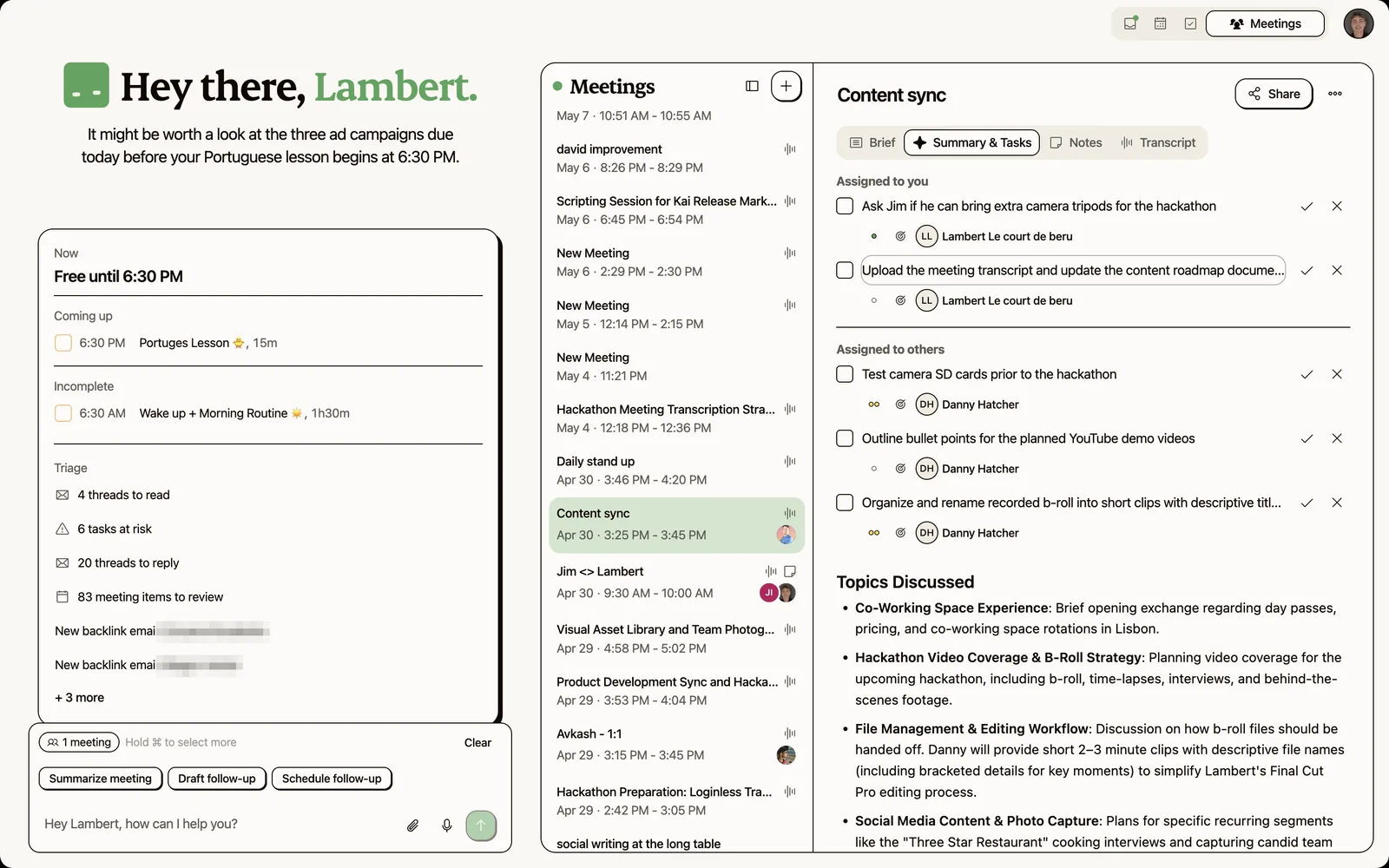
What comes out is a structured summary with Topics Discussed, Takeaways, Decisions Made and Next Steps, plus action items that become real tasks with an assignee, a priority and a due date, surfaced in your daily triage rather than left in a document. Kai will also draft the follow-up email in your own writing style through your connected mailbox, ready for you to send. That's the difference we noticed on our own test call: Zoom produced a document, Kai produced work. More on that surface on the meetings and action items pages, and Kai versus Otter if you're weighing the bot approach.
Three honest limits, because they're the flip side of the same design.
- Nobody else can see that you're recording. No bot joins, so no participant list gives you away. That's the whole advantage and it puts the disclosure entirely on you. Kai shows a consent reminder with a message you can paste into the chat, and you should use it.
- Both sides of the call need the desktop app. On the web, Kai captures your microphone only, which gives you your half of a conversation.
- Speaker labels are "You" and "Them", not names. Capturing two audio streams isn't the same as separating four people, and that's the thing a bot sitting in the call gets for free. Proper nouns are the first thing any of these tools lose, ours included, and a mangled name can propagate into a summary that reads confidently and says the wrong thing. Read the recap while the call is still fresh.
That first one deserves more than a bullet. The legal picture isn't decorative: twelve US states require all-party consent, and an AI notetaker vendor is currently being sued over recording without participant permission (Mayer Brown). Bot or no bot, telling the room is on you. We wrote up where the lines fall in AI meetings and consent.
FAQ
Does Zoom have AI meeting notes on the free plan?
Yes, with a cap. Zoom's free Basic tier includes meeting summaries "for 3 hosted meetings per month", along with 3 uses a month of My Notes and 20 AI queries (zoom.com, Verified 2026-08-19). The plan comparison table shows the same allowance going to Unlimited on Pro, Business and Enterprise (zoom.us/pricing). Either way the allowance counts meetings you host, not meetings you attend.
Do I need a paid Zoom plan for AI meeting notes?
No. This is the answer that has gone stale fastest, and plenty of guides still get it wrong. We hosted a call on a free Basic account on 19 August 2026 and Zoom produced a full summary. What the paid tiers buy is the cap coming off, plus the things stacked around the summary: retained transcripts, summary templates, Zoom Tasks, and the ability to send Zoom AI into a Teams or Meet call.
Can I get the AI summary if I'm not the host?
Not on your own. Only the host and co-host can start a summary, and only invitees who were on the original invite and signed in to their Zoom account receive it automatically (Zoom KB0058013). Your options are to ask the host to start it, ask them to enable automatic sharing with invitees, or capture your own record with something that doesn't depend on their settings.
Why didn't I get a Zoom meeting summary?
Work down the chain. You weren't the host. The host never started it, or their admin has it locked off. You joined from a forwarded link rather than the original invite, or you weren't signed in. The meeting used end-to-end encryption or a breakout room, both of which disable summaries entirely. Or the transcript was too thin: Zoom returns "A summary was not generated due to insufficient transcript" in that case (reported on r/Zoom).
Can I export a Zoom AI meeting summary?
Not through a documented Zoom feature. Zoom lists four things you can do with a finished summary: review, edit, change template, or open in Zoom Canvas (Zoom KB0080366). The route people use is to open the summary in Zoom Docs and download from there as Word or PDF, documented by York University's IT team rather than by Zoom (York University).
Does Zoom train its AI on my meetings?
No, and the commitment is unconditional in the current terms: "Zoom does not use any of your audio, video, chat, screen sharing, attachments or other communications-like Customer Content... to train Zoom or third-party artificial intelligence models" (Zoom Terms of Service, effective 11 August 2023). The August 2023 controversy came from an earlier version whose licence terms listed machine learning among the permitted uses. Zoom's first fix added a consent condition, and the version that has been live since 11 August 2023 dropped the condition entirely.
Does Zoom AI work on Teams or Google Meet calls?
Yes, two ways, both gated. An admin can allow Zoom AI to join third-party meetings as a participant, which needs a paid Workplace tier and a synced calendar (Zoom KB0080357). Or you use My Notes from the Zoom desktop app, which captures your device audio on any platform but labels speakers generically and supports 9 languages (Zoom KB0083849).
For the wider workflow around all of this, we've written up how to take meeting notes, how to write meeting minutes, and a meeting minutes template you can copy. If you're comparing notetakers specifically, getting meeting notes out of Read AI covers the same ground for a bot-based tool.

What to read next
How We Built Onboarding Emails With Claude
Issue #015 of How We Grow: the 6 onboarding emails Lambert built for Kai, where their content came from, how Claude built them in Intercom without anyone clicking through it, and what the first numbers say.
How We Built a Rival Ad Board With Claude
Issue #014 of How We Grow: why we pay for traffic, how Jim runs Kai's Google and Meta ads by talking to Claude, and the board of 324 competitor ads Claude collected to feed our next creatives.
AI Meeting Prep: How Briefs Work and Which Meetings Stay Yours
How AI meeting preparation works, from the brief we read before our own calls: what it pulls in, which tools gate it, and the meetings it can't prep.