
Key Takeaways
- Wispr Flow records meetings now, officially: Notetaker launched on August 5, 2026. No bot, no setup, built into the dictation app you may already run, and included in the free plan. We tested it on seven real calls, including our own five-person standup.
- The transcript runs live during the call, provisional speaker labels included (the clip below shows it); the final split lands about a minute after you stop. In our own recorded standup, three of the five voices came back correctly separated and two people came back as one.
- Renaming a voice is one click, but working out who is who took three to four minutes, so most meetings realistically stay Speaker 1, Speaker 2, Speaker 3.
- Transcripts come back rewritten to read clean, pre-meeting briefings recall your last conversation with each attendee, and a Slack connector feeds team messages into both, which no other bot-free notetaker we've reviewed does (Granola included).
- Share a note and your reader gets a Download Wispr Flow screen before they get the note, then the summary only. The transcript needs an invite.
- The catches: meeting processing runs in the cloud (per Wispr's ToS), capture is Mac-only today (macOS 14.4+), and the free plan caps meetings per week without publishing the number. What it captures stays in the note (MCP lets your AI tools read it, nothing routes it onward), and turning next steps into tracked tasks is the job Kai is built around.
Wispr Flow does meetings now. The app most people know for typing what they say has a Notetaker tab in its Mac app: it records your calls with no bot joining, splits the transcript by speaker, and turns it into a summary with next steps assigned to actual people. Wispr made it official on August 5, 2026, with a product page, press coverage, and public packaging. By then we'd been running real meetings through it for a week, on a Flow Pro account (v1.6.288, then the beta 2 build), including our own five-person standup. So this is a hands-on review, not a rewritten press release: what it does differently, where it breaks, and where it stops. This page covers the Notetaker on its own; if you're weighing the whole subscription, our full Wispr Flow review prices the dictation half alongside it.
The short version: it's a real Granola competitor, and five specific things set it apart, from the speaker-naming flow to briefings that remember your last conversation with an attendee. The caveats are just as real. Meeting capture requires cloud processing in an app whose dictation pitch includes a privacy mode, it's Mac-only for now (macOS 14.4+, per Wispr's docs), and what it captures stays in the note: the launch added MCP so Claude or ChatGPT can read your notes, but nothing routes work out of them (per its ToS, every output is note-bound). We build a meeting assistant ourselves, and we ship a free on-device transcription extension, so that last part is the lens we brought to this whole review.
 Side note
Nothing here is a leak. Every document we cite is public on Wispr's own site, and every screenshot comes from our own account, testing a feature Wispr shipped to it. We've blurred sensitive meeting content. Wispr announced Notetaker on August 5, 2026, and we updated this page the same day, as promised.
What the Wispr Flow Notetaker actually is
Wispr Flow made its name as a dictation app: you talk, it types, in any text field on Mac, Windows, iPhone, and Android. It's a big niche. The brand pulls about 28,000 US searches a month (Ahrefs, July 2026). Notetaker is a new left-sidebar tab in the Mac app that points all of that at a different job: the meeting itself.
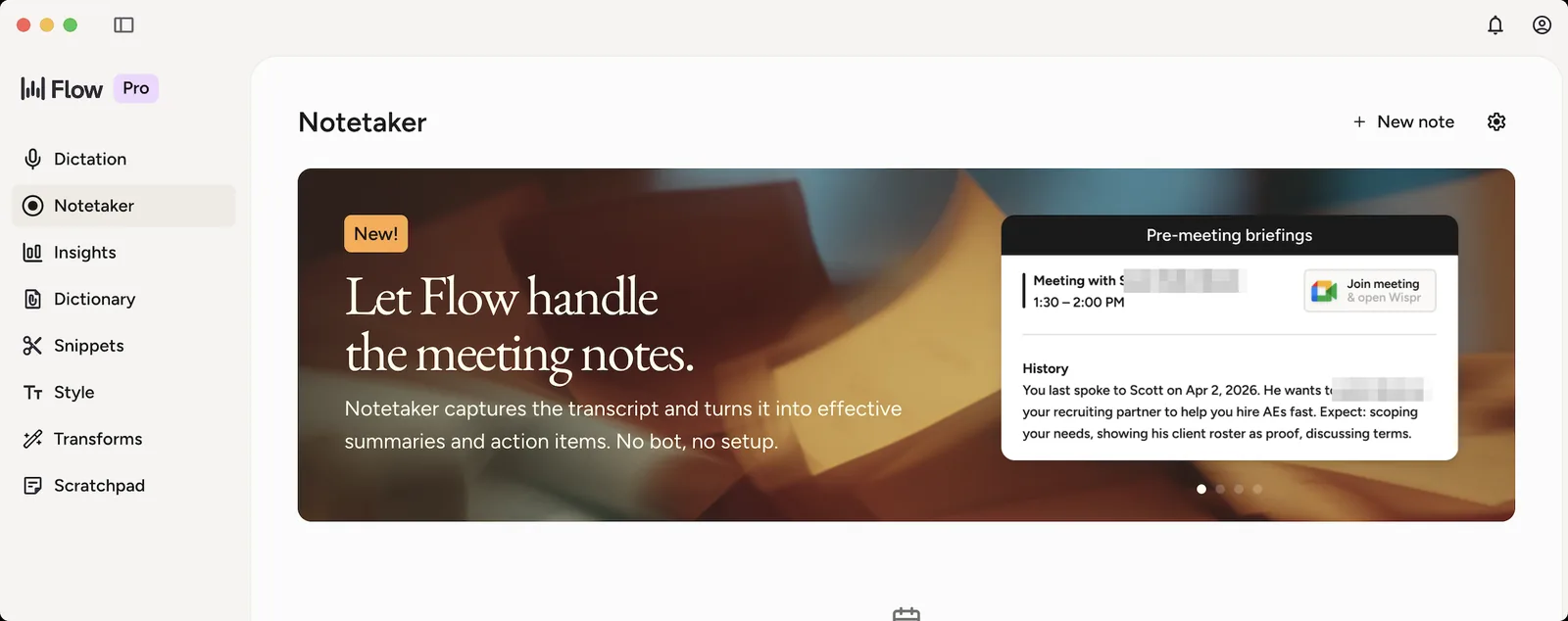
Each meeting becomes a note with three tabs. My thoughts is the space for what you type yourself during the call. Transcript is the record, running live while you talk and then re-split by speaker once you stop. Summary is generated at the end. Under every note sits an "Ask anything" box for questioning the meeting afterwards, and a Resume button that continues a stopped recording into the same note.
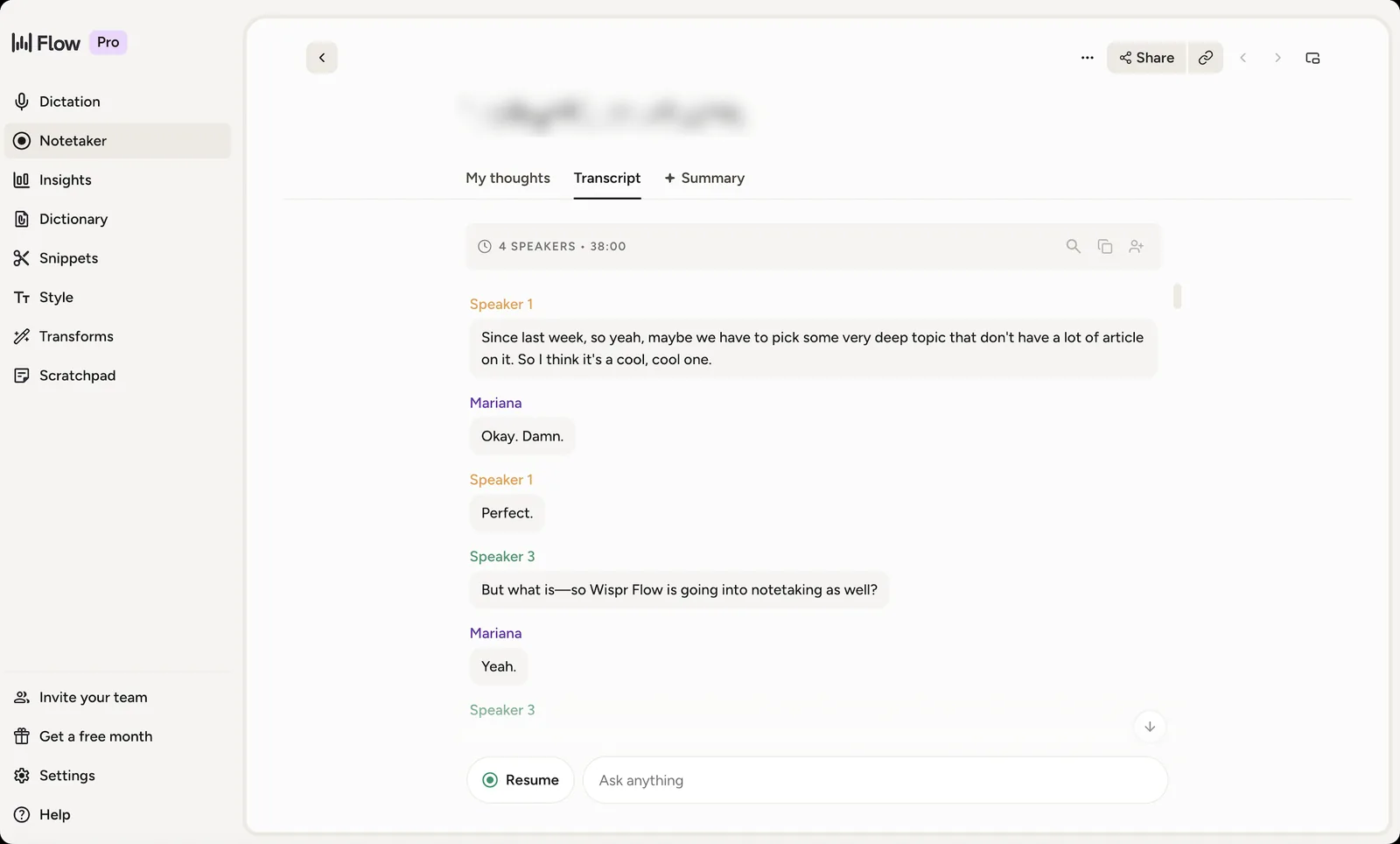
We put seven real meetings through it: internal syncs, an external vendor call, a couple of one-on-ones, and our own five-person team standup. Nothing crashed, capture never dropped, and the summaries came back in under a minute each. It felt finished well before it was public, and on August 5, 2026 Wispr made it official.
The 5 things Notetaker does differently
No bot, inside an app you already run
The pitch, in Wispr's own onboarding words: "Notetaker captures the transcript and turns it into effective summaries and action items. No bot, no setup." That's Granola's exact playbook. Nothing joins your call as a participant; the app records system audio and your mic directly on your machine, which is why it works across Zoom, Meet, or anything else your Mac plays.
The difference from every other bot-free notetaker is distribution. This one lives inside an app people already run all day to dictate, so the marginal cost of trying it is zero clicks of new software. Capture itself has one hard requirement worth knowing: system audio, the part that hears other participants, needs macOS 14.4 or later (per Wispr's docs).
Speaker naming: one click to relabel, four minutes to decide
Diarization is the feature Wispr clearly invested in, and it's the part of Notetaker we can tell you the most about, because until launch day Wispr documented none of it, and even now the product page sells the what ("Always know who said what"), not the how.
Start with how the labels actually arrive. In the build we first tested, separation didn't happen live: while the call ran you got a two-way transcript, you and them. The beta 2 build changed that, and it's what our clip at the top shows: provisional speaker labels now appear while the meeting is still running, with an in-app note that Wispr improves the transcript and labels after it ends. Either way, stop recording and about a minute later the final version comes back split by voice, with everyone it can't identify labeled Speaker 1, Speaker 2, and so on.
The rename flow that follows is genuinely well designed. The modal plays back two short quotes from each unnamed voice so you can work out who it is, then suggests names it already knows.
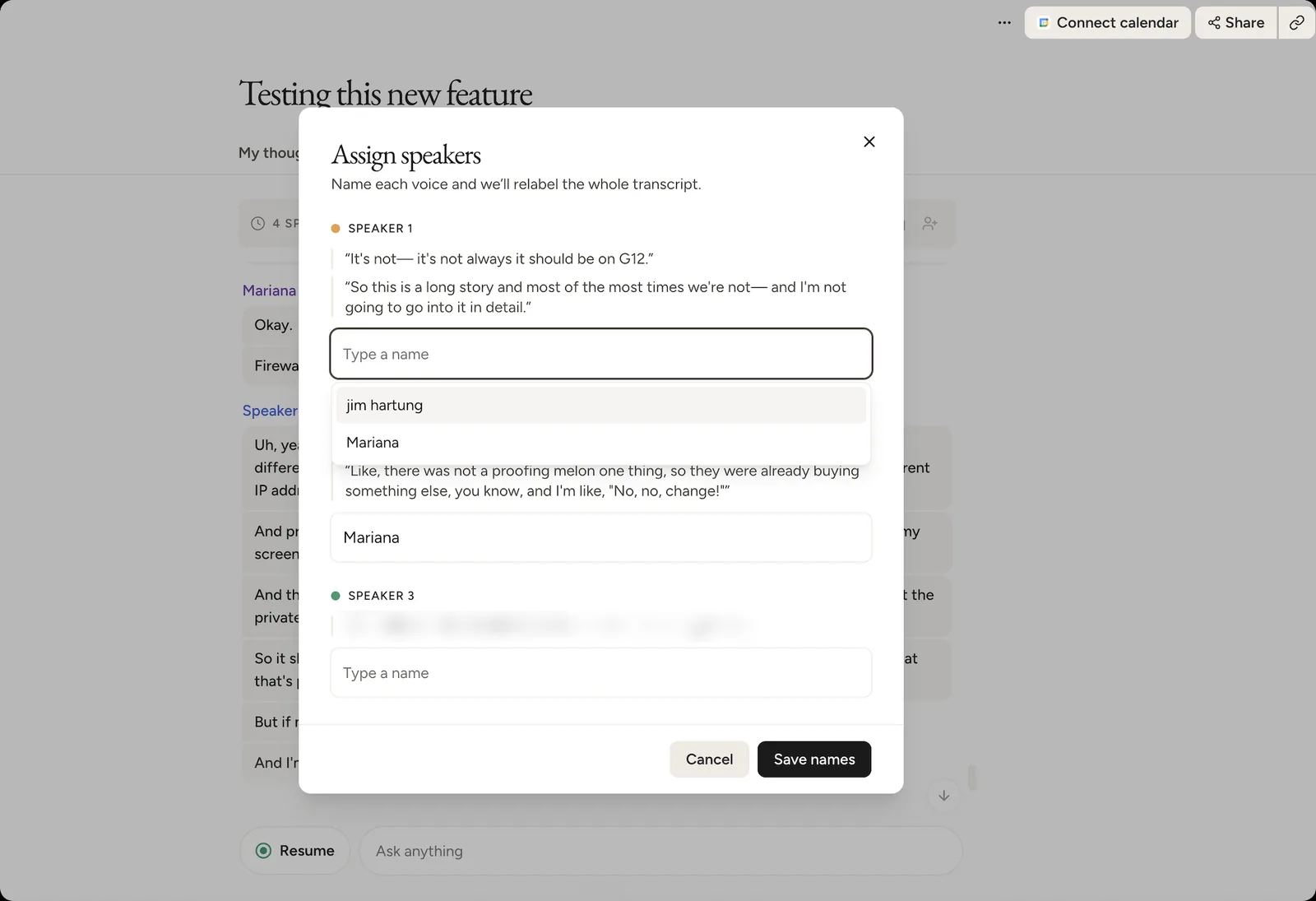
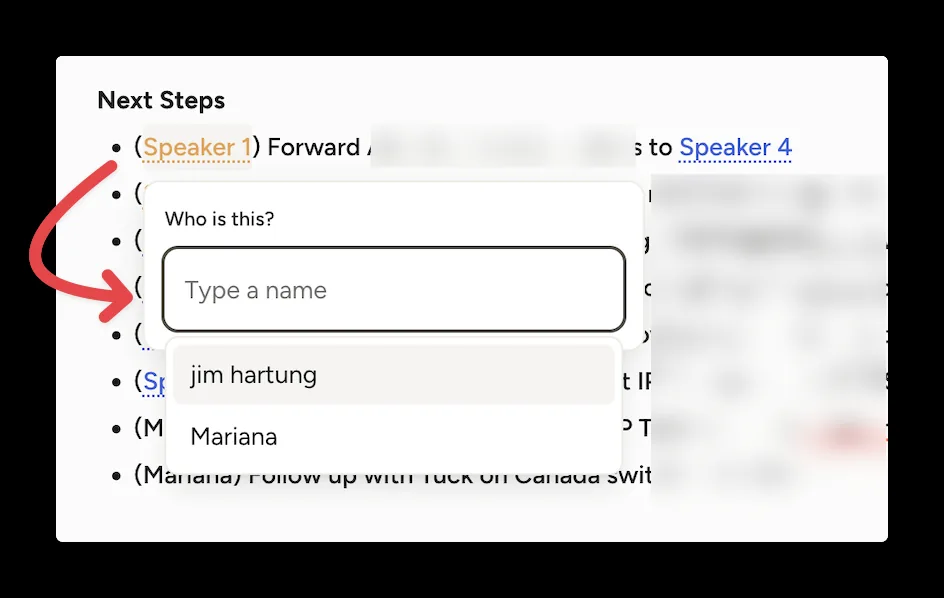
Click a name and the entire transcript relabels. The part we didn't expect: the summary's next steps update too, so "(Speaker 4) Confirm the IP discrepancy" turns into a task with a person's name on it.
Then we ran our own team standup through it, five people on one call, and got a real answer instead of an impression.
“Diarization is pretty good. It couldn't tell the difference between David and Danny. As for the rest, it got it right.”
Jim, who ran our test meetingsThree of five voices separated correctly, two people merged into one. That's the accuracy picture on a normal internal call with decent mics, and it's the number nobody else can give you today, because Wispr hasn't published one and the ToS disclaims speaker attributions in advance.
The bigger finding is the cost of fixing it.
“It took me three or four minutes to put the right names in. I'd never do that at the end of every meeting. So most of the time you're just left with Speaker 1, Speaker 2, Speaker 3.”
Jim, after the standup testThat isn't a complaint about the interface, and it's worth being precise about why. The click is instant. The decision isn't. You read a line, work out who said it, scroll back far enough to be sure, then repeat for each voice. No amount of UI polish removes that step, because the work is recognition, and recognition is yours. A well-built rename flow makes a five-minute job a four-minute job. It can't make it a zero-minute job.
So the honest version of this feature is: excellent when you invest the four minutes, and most weeks you won't. Which raises the question our own product team asked when we showed them the standup, and it's a better question than "is the diarization good."
“Merging 2 people in a call with 5 feels pretty bad to me, but maybe it's still better than not having it? Imagine having a meeting with an external customer, then sharing the transcript where what they said is labeled with your name.”
Marco, on our product teamWe build this feature ourselves, so we don't have a clean answer either. Wrong attribution on a shared transcript is worse than no attribution, and unlabeled voices are useless for assigning work. Jim's read after living with it for a week is the most useful frame we've heard: "the value lies in assigning action items to the right people." Hold onto that sentence. It turns out to be exactly where Notetaker stops.
A transcript that's rewritten to read well
Flow does heavy cleaning on the transcript once a meeting ends: punctuation fixed, sentences revised, filler gone. The result reads less like a court record and more like notes a careful colleague typed. For skimming a 38-minute call in two minutes, it's genuinely pleasant.
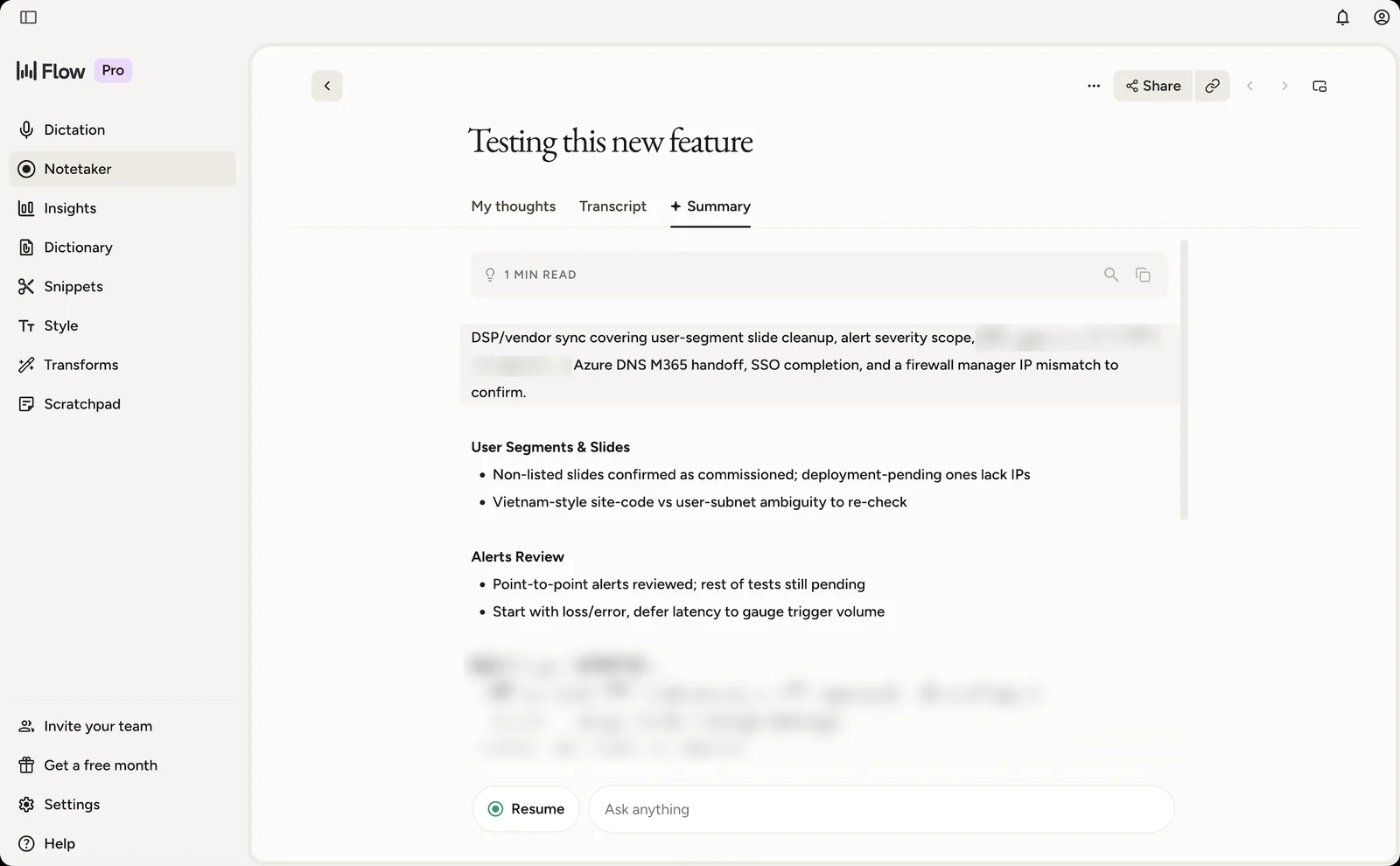
The tradeoff is fidelity. Rewriting sentences is not the same as transcribing them, and when the model mishears one word, a revised sentence can drift from what was said, with no audio to check against: Wispr's privacy policy says recorded meeting audio isn't user-accessible or replayable (source). When we showed the feature internally, the first question from our team was exactly that: how many names, places, and numbers survive the rewrite intact? On our six meetings the summaries held up, but we'd re-read the transcript before sending anything client-facing that depends on a number.
Briefings that remember your last conversation
The feature on the marketing banner is pre-meeting briefings. Connect Google Calendar and, before a scheduled call, Notetaker shows a card with the meeting, a join button, and a History blurb: when you last spoke to this person, what they wanted, what to expect this time. It's the kind of context an assistant would whisper to you at the door, and seeing it inside a dictation app is genuinely new. It worked on our real calendar; the first screenshot in this article is one of those cards from our account.
A Slack connector that feeds your summaries
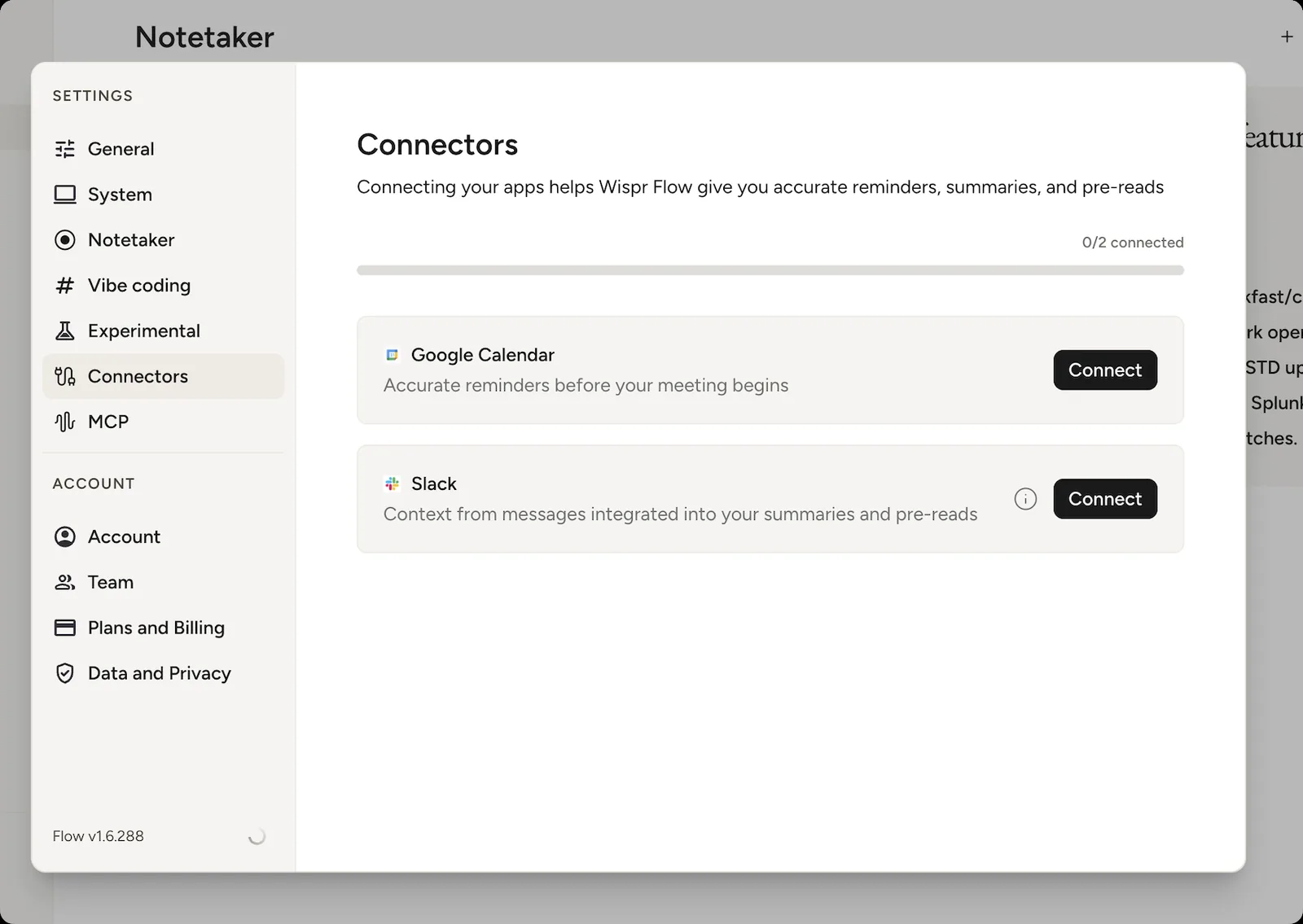
The fifth difference is Slack, promising "context from messages integrated into your summaries and pre-reads." Team-chat context is the piece we hadn't seen from any bot-free notetaker we've reviewed, Granola included.
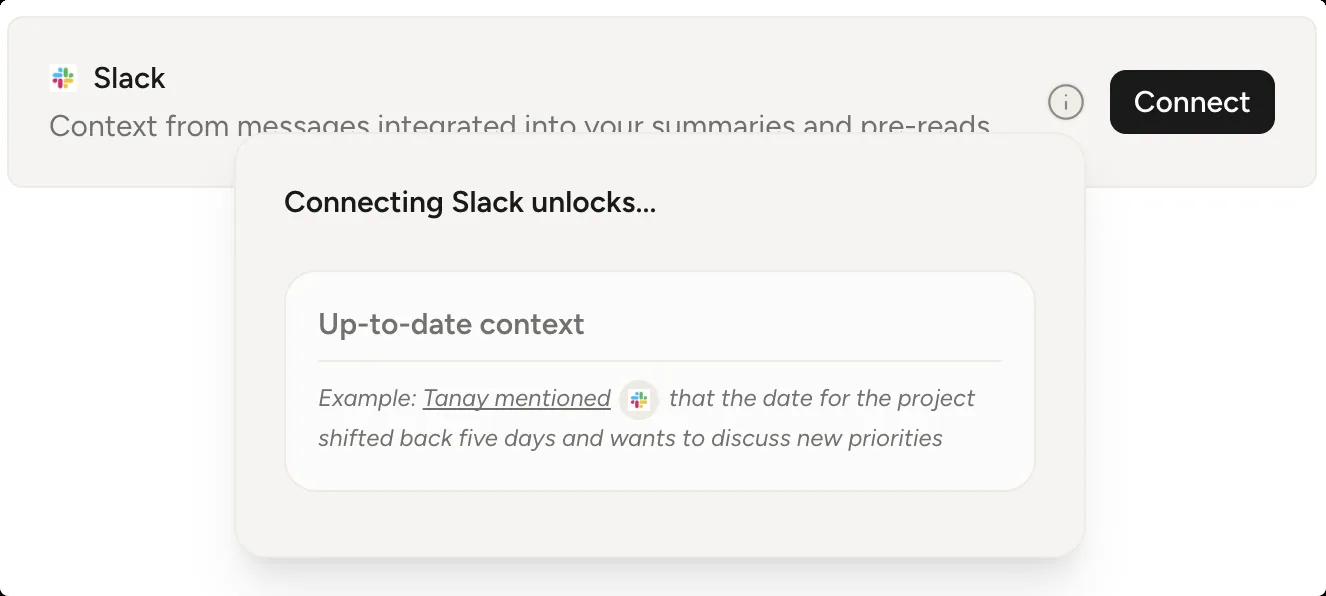
Honesty requires saying we haven't wired the Slack side to a workspace yet, so we can't tell you how well it works, only what it claims. We'll update this section once we have.
Sharing a note hands your reader a download button
You can send a meeting note to someone who doesn't use Wispr Flow. Hit Share and you get a link on notes.wisprflow.ai that opens for anyone. We tested one from a signed-out browser, and the thing that loads first isn't the note.
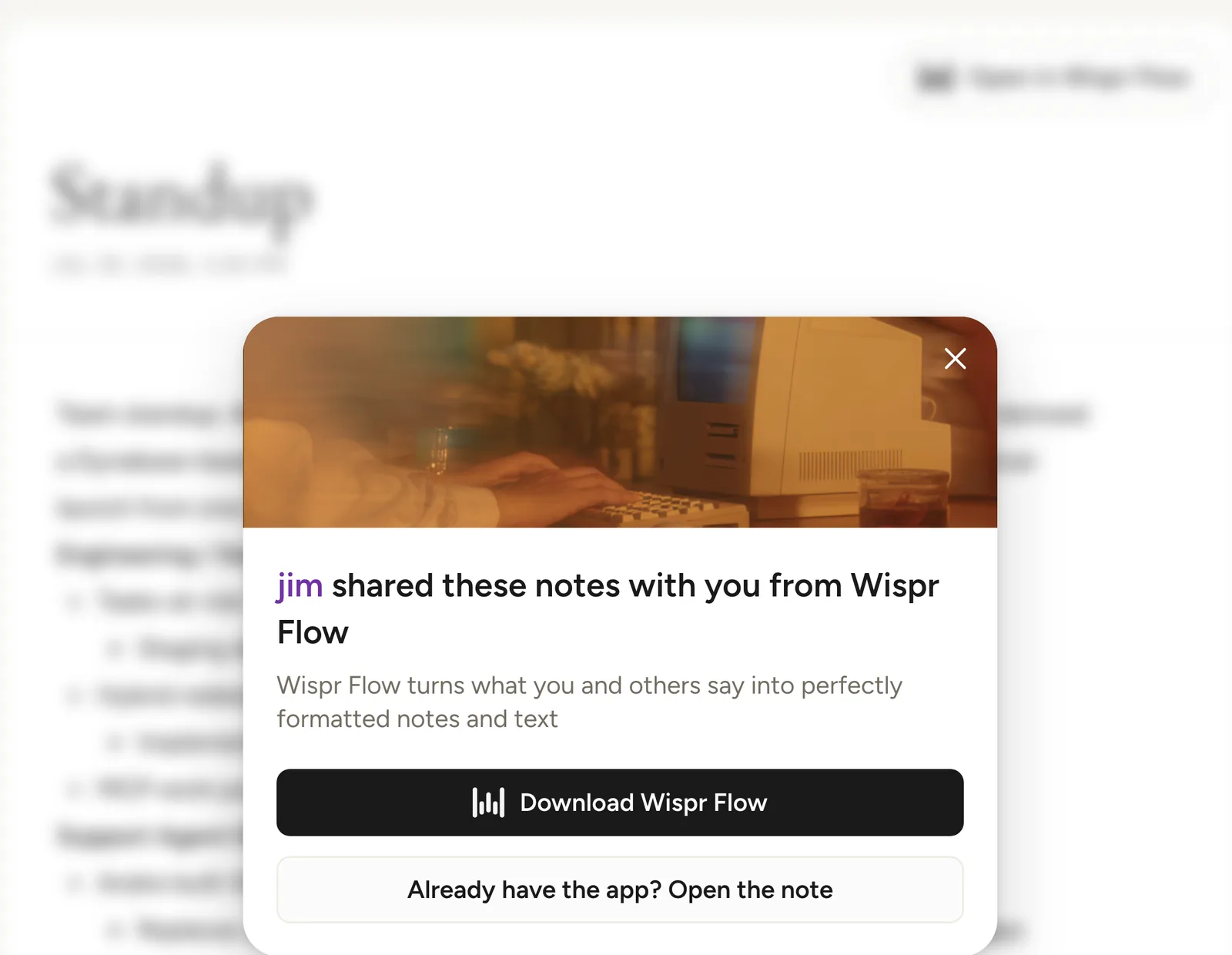
Your reader gets a full-screen card with the sharer's name, a one-line pitch, a Download Wispr Flow button, and below it, in the quieter position, "Already have the app? Open the note." The note is blurred behind it until you dismiss the card. Do that and you get the summary. You don't get the transcript: the in-app share dialog says "can view summary, invite for transcript access," and the public page has no transcript tab at all. None of this is in Wispr's documentation, which mentions "meeting sharing" once, in a privacy doc listing what breaks without Cloud Sync, and never says what a shared link shows.
Two things are worth noticing. The product call is defensible: the summary is the shareable artifact, the transcript stays private, which is roughly the right default for a recording of other people.
The growth call is the interesting one. Every note anyone shares becomes a landing page for Wispr Flow, delivered by a trusted colleague, at the exact moment the reader is looking at something useful the product just made. Granola runs the same loop, and it's a large part of why both companies would rather your notes leave as a hosted page than as a file. It's also where Wispr's positioning for this whole bundle is already public, in the card's own subtitle: "turns what you and others say into perfectly formatted notes and text." What you say is the dictation product. What others say is the notetaker. That sentence is shipping to every recipient of every shared note, while the changelog still hasn't mentioned the feature exists.
Wispr Flow Notetaker vs Granola
The obvious question. Granola built its category position on the exact pitch Wispr just replicated: no bot in the call, capture from the device, notes over recordings. Until now, every comparison of the two tools ended with "they're complementary, use both." That framing died the day Notetaker appeared.
Wispr also ships a one-click import of your Granola history, and we ran it on a free Granola plan to see what actually lands: importing Granola notes into Wispr Flow. Notes and summaries come across. Transcripts don't, and Wispr says so inside the imported note itself, "No transcript from Granola. Availability depends on your Granola plan." Nothing older than 30 days moves either, which tracks with what Granola exposes to connected apps on its free tier, "personal notes from the last 30 days" (Granola docs).
Here's where the two stand, based on our testing of Notetaker and our full Granola review. Pricing below is from the Wispr Flow pricing page and the Granola pricing page. Verified 2026-08-05.
| Wispr Flow Notetaker | Granola | |
|---|---|---|
| Status | Launched Aug 5, 2026, Mac only | Shipped, Series C, $1.5B valuation |
| Capture | No bot, system audio, macOS 14.4+ only | No bot, device audio, on macOS, Windows, iOS, Android |
| Transcript | Live with provisional speaker labels, final split and cleanup about a minute after the call | Stored transcript, no audio replay |
| Speaker handling | One-click rename relabels transcript + next steps, but identifying voices took us 3-4 min per call | Speaker ID is weaker, no one-click relabel |
| Your own notes | "My thoughts" tab beside the transcript | The core product: you jot, AI enhances your notes |
| Meeting context | Calendar briefings with relationship history, Slack context | Calendar-aware upcoming list |
| Sharing | Public link, summary only, opens on a Download Wispr Flow card | Shareable notes and folders |
| Price today | Included in the free plan (weekly meeting cap), higher limits with Flow Pro $15/mo ($12 annual) | Free plan (30-day history), Business $14, Enterprise $35 |
Where Granola still wins: it runs on four platforms while Notetaker is Mac-only, its jot-and-enhance notes model is more mature than Flow's "My thoughts" tab, and it has years of polish where Notetaker is days out of a quiet rollout. Its hybrid model is also a different philosophy: Granola treats your own typed notes as the primary artifact, which some people strongly prefer. The forks between Granola and its other challengers are covered in our Fathom vs Granola and Bluedot vs Granola comparisons.
Where Wispr wins: one app now covers dictation and meetings, the speaker-rename flow is better than anything Granola offers, and briefings plus Slack context pull information toward the meeting instead of just recording it. The launch added two moves aimed straight at Granola: MCP support, so Claude, ChatGPT, or Cursor can read your meeting notes, and a one-click import of your existing Granola notes. For the 28,000 people a month already searching for Wispr Flow, meetings just became a free add-on to a tool they use daily. That's the strategic threat to Granola: not a better notetaker, a bundled one.
One more practical difference: getting your data out. Granola's export options are thin enough that we wrote a guide to exporting Granola notes. Wispr's share model (summary via link, transcript by invite) is fine for sharing, and since launch MCP is the realistic programmatic path: point Claude, ChatGPT, or Cursor at your notes and pull what you need. For a plain file, copy-paste is still the export on both sides.
What still dies in the note, and where Kai picks up
Here's the thing this launch confirms for us: capturing a meeting is no longer the hard part. A dictation company shipped transcripts, diarization, summaries, and assigned next steps as a side feature, and ran it for weeks before bothering to announce it. Capture is becoming table stakes, something we argued in our guide to taking meeting notes well before this rollout.
What hasn't changed is what happens after. Look closely at Notetaker's summary: next steps with named owners, decisions listed. Now ask where they go. The answer is nowhere. The connectors feed context in, from your calendar and your Slack, and the one outbound door the launch added is MCP: Claude, ChatGPT, or Cursor can now read your notes and transcripts, which is genuinely useful and still not the same thing as routing. There's no task-manager integration, and the ToS describes outputs as summaries, action items, and follow-up materials that live in the note (source). "(Mariana) Follow up with Tuck on the switch replacement" is written down, correctly attributed, and completely inert. Someone still has to carry it to a task list, a CRM, or an inbox. That someone is you.
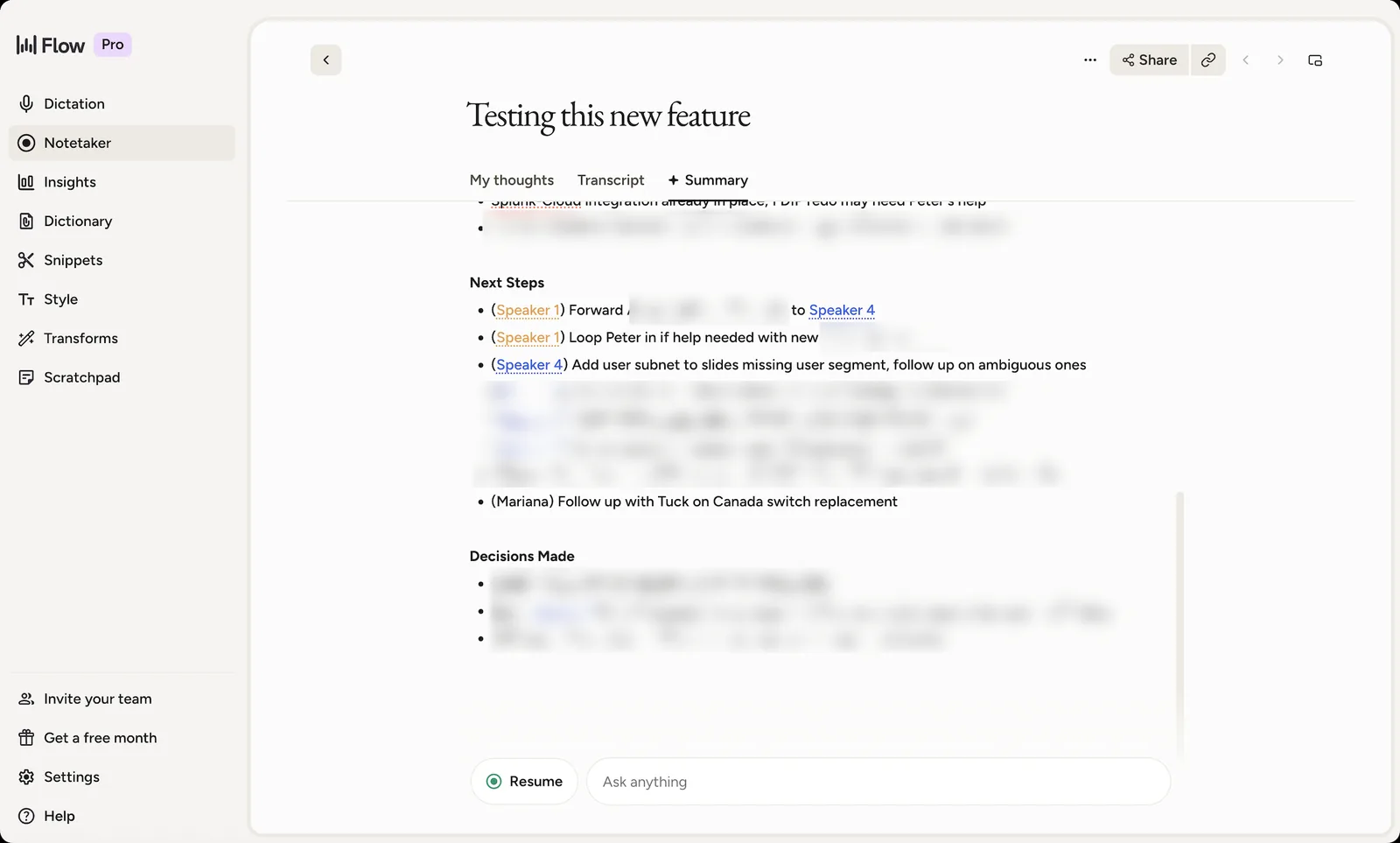
Watch how people actually use a meeting tool and the point gets sharper. We asked a colleague how he uses meetings in Kai day to day. He listed four things, and the transcript wasn't one of them.
“I don't use transcripts at all. My use for meetings: add suggested tasks, ask Kai questions, check the summary on a very rare occasion, share with others.”
Danny, on our teamAlmost nobody re-reads a 38-minute transcript. People want the commitments pulled out of it, an answer from it later, and occasionally a link to it. So the bar for a meeting tool was never transcript quality. It's what the transcript turns into, which is the same conclusion Jim reached after the standup: the value is in assigning action items to the right people.
This is the gap Kai exists for. Kai captures meetings the same bot-free way, on any call your device plays. The difference starts when the meeting ends: Kai pulls out action items with an assignee, a due date, and a priority, splits them into yours versus everyone else's, and leaves them on the meeting as suggestions you add to your task list or delete. Added items become real tasks next to your calendar and email, the whole chain from a spoken commitment to a tracked task that Notetaker leaves you to run by hand. You can ask Kai about any past call without finding the note first, and it drafts the recap email to attendees in your own tone, pre-addressed, waiting for your click. Recording consent stays on you either way; our guide on asking before recording covers how we handle that.
The honest limitation, because there always is one: in the web app, Kai doesn't auto-detect that a meeting started. It reads your calendar and flags the scheduled meeting so transcription is one click, but an unscheduled call won't trigger a prompt there. The Mac app closed that gap on September 10, 2026: when Zoom, Teams, a browser or another call app starts using your mic, it offers to record, and you can switch that off or pick which apps may prompt. If you live in spontaneous calls on the web, Granola's trigger model or Wispr's tray is less friction. In practice we also tuned our extraction to pull fewer, better tasks after early versions fired on every "we should maybe."
The paper trail Wispr left in public
You don't have to take our screenshots' word for any of this. Wispr documented Notetaker in public, just not anywhere a normal person would look.
The Terms of Service effective July 25, 2026 define Notetaker as meeting transcription, note-taking, summarization, speaker identification, action item generation, and meeting insights. They state that "Notetaker currently requires Cloud Sync to be enabled," and they carry an all-caps accuracy disclaimer that specifically covers speaker attributions. The privacy policy, updated the same day, adds that Google Calendar data can be used to identify meetings, and that encrypted meeting audio is temporarily retained without being user-accessible or replayable.
The help center goes further, and it's still moving. The supported-devices page documents the macOS 14.4 requirement. The MDM deployment guide tells IT teams to pre-authorize system audio "for meeting notetaking." An enterprise FAQ mentions transcript-retention controls. The setup guide, edited in the days before launch, carried a question a normal user would only ask if the feature were already in their hands: "I'm setting up Flow as a meeting notetaker, why does the permissions screen look different?" The help index caught up on launch day: there's now a Wispr Notetaker category.
What none of those documents describe is how well any of it works. Diarization accuracy, the real cost of the rename flow, what the shared-note page shows a recipient: for those you still have to run real meetings through it, which is what this review is.
 Did you know?
Wispr's changelog never announced Notetaker, not even on launch day. As of August 5, 2026, its latest entry (v1.6.288, July 29) covers rich-text snippets, team leaderboards, and bulk invites, and says nothing about the meeting notetaker that shipped in the same build. The lawyers documented the feature first (ToS, July 25), the pricing page and a product page caught up at launch, and the changelog is still behind.
One receipt matters beyond trivia. Cloud Sync being mandatory means the meeting feature can't inherit a local-privacy story; Flow's own privacy-mode doc confirms meeting recording sits on the cloud side of that line. Cloud processing is already the recurring critique of Flow's dictation among technical users:
“Yes, Wispr Flow is a cloud-based application. All of your voice data, dictation, and contextual AI processing happen on remote external servers.”
Danox on Hacker News, May 2026The meeting feature extends that architecture to entire conversations, so if that thread made you wince, this will too.
How to get it, and what's still open
Since August 5, 2026, Notetaker is simply in the Mac app: a left-sidebar tab, no waitlist. The pricing page now spells out the packaging. The free plan includes Notetaker with a weekly meeting limit and standard note retention (Wispr doesn't publish the exact cap), Flow Pro at $15/user/month ($12 annual) raises the limits and keeps notes longer, and Enterprise is listed as coming soon. The hard requirements haven't moved: macOS 14.4+ for system audio, Cloud Sync on, English only for now. Wispr says Windows is coming soon and mobile is on the roadmap. For what the $15 buys across both halves of the app, dictation included, see our full Wispr Flow review.
What's still open: the exact free-tier cap, and how diarization behaves on strong accents, poor microphones, or a twelve-person call. Our five-person standup is still the only published accuracy number we know of, and one data point is one data point. We'll keep re-verifying this page against what ships.

FAQs
Does Wispr Flow record meetings?
Yes, officially since August 5, 2026. Wispr Flow's built-in Notetaker records meetings without a bot, transcribes them with speaker labels, and generates summaries with action items, inside the Mac app. It ran as a quiet rollout first (Wispr's Terms of Service defined it on July 25, 2026, days before the announcement); now it has a product page, public packaging, and a spot in the free plan.
Does the Wispr Flow Notetaker join calls as a bot?
No. It captures your Mac's system audio and microphone directly, so nothing appears in the participant list, and it works on any call your computer plays: Zoom, Google Meet, Teams, or a phone call routed through your Mac. That's the same bot-free approach Granola uses. Consent is still your job; no visible bot means attendees don't know a recording is happening unless you tell them.
What does the Wispr Flow Notetaker cost?
Notetaker is included in Wispr Flow's free plan, with a weekly meeting limit and standard note retention; Wispr doesn't publish the exact cap. Flow Pro, at $15/user/month or $12 on annual billing, raises the limits and keeps notes longer. Enterprise access is listed as coming soon on the pricing page (verified August 5, 2026, launch day).
Does the Notetaker work on Windows or iPhone?
Not yet. At launch (August 5, 2026) Notetaker is Mac-only: system-audio capture requires macOS 14.4 or later, and it supports English only. Wispr says Windows is coming soon and mobile is on the roadmap. Flow's dictation already runs on Windows, iPhone, and Android; the meeting feature hasn't caught up.
Why does the Notetaker require Cloud Sync?
Wispr's ToS says Notetaker "currently requires Cloud Sync to be enabled," which means meeting processing happens on Wispr's cloud rather than locally. The privacy policy adds that encrypted meeting audio is temporarily retained and isn't user-accessible or replayable. If your team's rules require local-only processing, that's the line to check; transcript retention controls are listed as an enterprise feature.
How accurate is Wispr Flow's speaker detection?
Good, not perfect, and Wispr publishes no numbers. On our five-person team standup it separated three voices correctly and merged two people into one. You get a live transcript with provisional speaker labels during the call; the final split lands about a minute after you stop. Renaming each voice is one click, but recognizing who is who took three to four minutes, so in day-to-day use most transcripts stay labeled Speaker 1, Speaker 2, Speaker 3. Wispr's Terms of Service disclaim speaker attributions in advance, which is the right expectation to bring: treat labels as a strong draft, not a record, especially before sharing a transcript outside your company.
Can you share a Wispr Flow meeting note?
Yes. Sharing produces a public link on notes.wisprflow.ai that anyone can open without an account. The recipient first sees a full-screen card naming the person who shared it and a Download Wispr Flow button, then the note's summary. The transcript is not included: the in-app share dialog states that link viewers see the summary and that transcript access needs an invite. Wispr's help documentation doesn't describe the shared page at all, so that behaviour comes from our own testing on July 30, 2026.
Should Granola be worried about Wispr Flow?
About the pitch, yes: "no bot, no setup" stopped being Granola's differentiator the day Notetaker appeared, and the August 5 launch sharpened it: Wispr now offers a one-click import of your Granola notes, and MCP access so Claude or ChatGPT can read your meeting notes. Granola keeps real advantages: four platforms, a mature notes-first model, and years of polish. The deeper point is that both tools stop at the note. If your problem is that meeting action items never reach your task list, that's a category gap, and it's the one Kai is built to close. Our Kai vs Granola comparison walks that fork in detail.

What to read next
Wispr Flow Review 2026: Two Products, One $15 Subscription
Wispr Flow shipped a meeting notetaker in August 2026. We price both halves of the subscription after a month of daily use on a paid account.
How to Import Granola Notes to Wispr Flow
Wispr Flow's Granola import takes 31 seconds, and we filmed it. Notes and summaries arrive, transcripts don't, and Granola's 30-day limit comes with you.
Granola AI Review (2026): Pricing, Limits, Why We Left
After months of daily Granola use: what the free plan really limits, how accurate the transcripts are, what $14 buys, and the gap that made us switch.