


Key Takeaways
- Copilot is already in Outlook, so "AI for Outlook email" is a boundary question, not a shopping question: what does the built-in AI cover, and what needs a layer on top?
- Copilot covers the writing surface well: drafts, coaching, and thread summaries. It leaves the relay work with you: triage, contextual replies, email-to-task capture, and follow-ups on silent threads all need your prompt, per Microsoft's own Copilot FAQ.
- Add-ins (MailMaestro, Grammarly) make writing inside Outlook better. Assistant layers (Fyxer, Superhuman, Kai) connect to your account and run parts of the relay autonomously.
- We build Kai on Outlook's API, and the plumbing taught us where the edges really are: Microsoft Graph's reply-draft endpoint silently marks a thread read (we ship a repair for it), and Outlook categories are one account-wide master list, not per-folder labels.
- For business accounts, external tools requesting mailbox access hit an admin-consent wall. Expect a "Need admin approval" dialog before any of them work.
Copilot already lives inside Outlook, which makes most "best AI for Outlook" listicles obsolete on arrival. The question is no longer whether you can add AI to your inbox. It is which of the four jobs that make email painful the built-in AI actually does, and what to put on top for the rest.
I have a concrete stake in that question. My work email runs on Outlook (Microsoft 365) and my personal one on Gmail, and both are connected to Kai, the AI executive assistant we build. These days I barely open the Outlook interface: I go in occasionally to verify something, and that is about it. The triage, the reply drafts, and the morning update have already happened by the time I would have started reading.
Building that integration is also how we learned exactly where Outlook's own AI stops, down to details Microsoft's docs do not advertise, like the Graph API call that creates a reply draft silently marking the whole thread as read. We had to build a repair step for that one.
So here is the short version, up front. If your organization already pays for Microsoft 365, Copilot is genuinely useful for drafting and summarizing, and you should try it before buying anything. But triage, replies with real context, action-item capture, and follow-up chasing are relay work between your inbox and the rest of your day. Copilot does not run that relay: its triage actions run one prompt at a time, per Microsoft's own Copilot FAQ. Add-ins run pieces of the writing side. The relay itself is what an assistant layer is for.
What "AI for Outlook email" means in 2026
Three routes, and they are not interchangeable.
Built-in Copilot. Microsoft's AI inside Outlook itself: drafting, coaching, summaries, and a priority flag on incoming mail. No install, but it is gated by your Microsoft 365 plan, and it only works on primary mailboxes hosted in Exchange Online (Microsoft's requirements): no shared, delegate, or on-premises mailboxes.
Marketplace add-ins. Tools like MailMaestro and Grammarly that install into the Outlook ribbon and improve what you write there. They are cheaper than Copilot's business add-on and often better at tone, but by design they activate on one message at a time, the one you are reading or composing.
Assistant layers. Products like Fyxer, Superhuman, and Kai that connect to your account over Microsoft Graph (the same OAuth door every serious integration uses) and work on the whole mailbox: sorting it, drafting into it, or routing what it contains into tasks and follow-ups. This is the route with the admin-consent catch for work accounts, which we cover below.
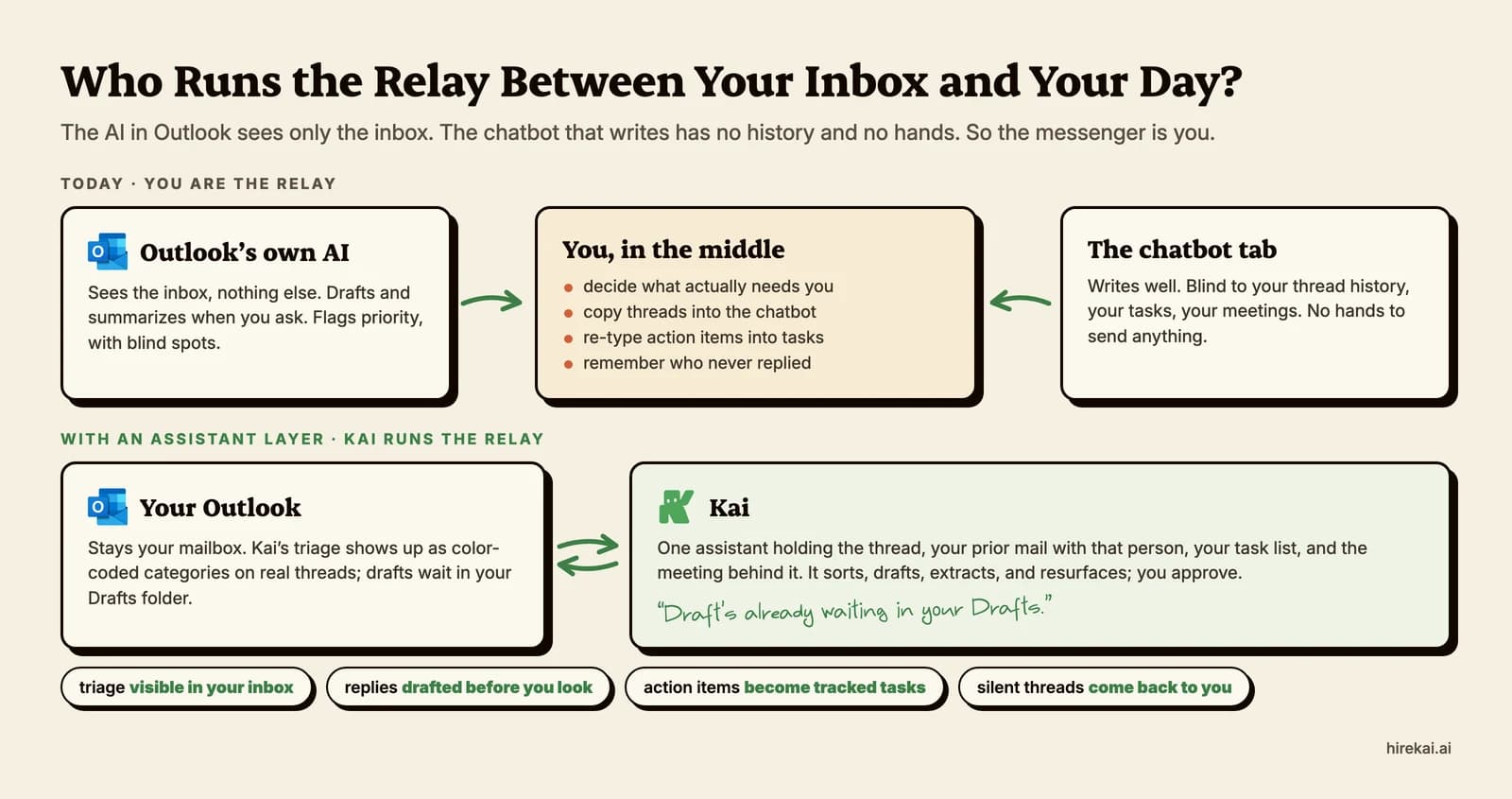
The real difference between the three routes is not feature count. It is who runs the relay between your inbox and the rest of your day:
What Copilot in Outlook does well
Credit where due: the writing surface is covered.
- Draft with Copilot writes full emails and replies from a prompt, with adjustable tone and length (Microsoft).
- Coaching by Copilot reviews a draft you wrote and suggests tone and clarity changes before you send (Microsoft).
- Summary by Copilot condenses a long thread with numbered citations back to the source emails, and in new Outlook it can summarize attached PDF, Word, and PowerPoint files too (Microsoft).
- Prioritize my inbox marks incoming mail high, normal, or low priority based on the people and content involved. Read the fine print, though: it skips mail delivered to subfolders, meeting invites, and encrypted messages (Microsoft). If your rules already sort mail into folders, the AI never sees it.
What it costs (checked July 2, 2026). On consumer plans, Copilot is now bundled: Microsoft 365 Personal is $9.99/mo with Copilot included for the account owner, after the first price increase in the product's history (Microsoft). On Family, only the subscription owner gets it. For work accounts, Copilot is a paid add-on on top of a qualifying base plan: $18/user/mo for smaller businesses on promotion through December 31, 2026 ($21 standard), and $30/user/mo on enterprise agreements (Microsoft's pricing page). Licenses will not even assign in the admin center if your base plan is ineligible (Microsoft licensing docs). All prices in this article verified 2026-07-02 against the official pricing pages linked next to them.
The rollout is not smooth everywhere, and you do not have to take our word for it. Microsoft's own support forum carries threads from users whose Copilot buttons vanished from classic Outlook:
“The summarize button no longer displaying inside emails... even my company IT admin cannot solve it.”
a user on Microsoft Learn Q&AIf you are on classic Outlook, a shared mailbox, or an on-premises Exchange setup, assume Copilot will partly or fully not apply to you (Microsoft's requirements exclude shared, delegate, and on-premises mailboxes), and plan around the other two routes.
 Tip
TipBefore paying for anything on this page, open Outlook and look for the Copilot icon in the ribbon. If your organization already runs eligible Microsoft 365 plans, you may already own the drafting layer. The only question left is the relay work below.
The four jobs Copilot leaves on your desk
An honest admission first: until this week I could not have told you my own email volume. So I asked Kai to count it, and the answer came back as 63 inbound emails across my two accounts in the past three days, a bit over 20 a day. That is modest next to the 117 emails a day Microsoft measures for the average worker (Work Trend Index, 2025), and the relay work still leaked through: on Outlook, pre-Kai, I regularly opened an email at the wrong moment, decided to answer later, and never did.
Nobody drops email because they cannot write. It gets dropped in the deciding, the chasing, and the copying out of the inbox into wherever work is actually tracked. That splits into four jobs.
 Did you know?
The volume count above was not estimated. Kai exposes its email tools to external AI agents through an MCP server, so the agent helping draft this article asked Kai directly and counted the real inbound mail on the author's two connected accounts.
Here is the map the listicles do not draw, route by route:
| Email job | Copilot (built-in) | Add-ins | Assistant layer |
|---|---|---|---|
| Triage: what needs me today? | Priority flag only, with documented blind spots (subfolders, invites) | Auto-labels at best | Core job: the mailbox is sorted for you |
| Replies with your history and context | Drafts from the open thread | Drafts from the open thread, better tone control | Drafts prepared from thread + relationship history before you open the message |
| Email into tracked tasks | Manual, per prompt | Manual | Extracted automatically (tool-dependent) |
| Following up on silent threads | Not yet: in a limited preview program | No (writing scope only) | Tracked and nudged (tool-dependent) |
Two honest notes on that table. First, Copilot can pin, flag, archive, and file messages when you ask it to in chat, so "manual" means every action needs your prompt, not that no action exists. One analysis puts it plainly: it "does not autonomously triage your email... does not extract tasks... does not track follow-ups" (Alfred's Copilot breakdown, a competitor, but the claim matches Microsoft's own feature docs). Second, Microsoft knows these four jobs exist: its experimental Frontier program previews agents that find unreplied emails and draft follow-ups, gated behind a business Copilot license plus explicit IT opt-in (PCWorld). The relay is the roadmap. It is just not the product yet.
The four jobs are also not equally painful for everyone. If email is mostly a writing problem for you, stop reading after the add-ins section, honestly. If email is where your action items and follow-ups go to die, the last two rows are the ones that matter, and no amount of better drafting fixes them.
The add-in route: better writing inside Outlook
Add-ins earn their place when the gap is writing quality or drafting speed, not inbox control.
| Add-in | Best at | Price (verified 2026-07-02) |
|---|---|---|
 MailMaestro MailMaestro | Drafting and summaries inside Outlook | $15/user/mo ($12 annual) |
 Grammarly Grammarly | Writing mechanics and tone | $12/member/mo annual |
 Lindy Lindy | Build-your-own email agents | Paid plan after a 7-day trial |
MailMaestro ($15/user/mo, or $12 annual, pricing) is the most complete of them: drafting and replies in 20+ languages, thread and attachment summaries, and auto-drafted replies waiting before you open a message (Microsoft Marketplace listing). Users like the speed and dislike the friction:
“Mixed bag, I'd like it to be more automated as right now it takes too many clicks to get it to respond to an email or write a new one.”
a MailMaestro user on CapterraGrammarly ($12/member/mo annual, plans) stays in its lane: grammar, clarity, tone, and rewrites inside Outlook, backed by a 4.7/5 average across more than 13,500 G2 reviews (G2). It does nothing about triage, tasks, or follow-ups, and does not pretend to.
Lindy sits between categories: a no-code agent platform that connects to Outlook via OAuth and can be wired into email-to-task extraction and follow-up workflows. Capable, but you are assembling the assistant yourself, and G2 reviewers note the setup "typically demands some coding skills or technical know-how" (G2).
The shared ceiling: add-ins see the message you are looking at. They do not hold your task list, your meeting context, or your waiting-on-reply list, so the relay work stays with you.
The assistant-layer route: Fyxer and Superhuman
These connect to your Microsoft 365 account and work the mailbox itself.
| Assistant | Runs the relay for | Price (verified 2026-07-02) |
|---|---|---|
 Fyxer Fyxer | Background triage and drafts | $30/mo (1 inbox), $50/mo (multiple) |
 Superhuman Superhuman | A speed-first client with follow-up tracking | $30/mo Starter, $40/mo Business |
 Kai Kai | The whole-day relay: email, tasks, meetings | Free trial, then $20/mo Base, $50/mo Pro |
Fyxer ($30/mo per inbox, $50/mo for multiple, pricing) auto-sorts incoming mail into To Respond, FYI, and Marketing, and prepares drafts in your voice as a background service. It is the closest competitor to how Kai treats email triage, with two firm limits its own materials confirm: it only drafts (never sends), and it does no task extraction or follow-up tracking (Fyxer for Outlook). Buyer caution is warranted on billing: at least one Trustpilot reviewer reports being charged $2,800 after a trial (Trustpilot), and a G2 reviewer describes a booking-routing privacy failure with no human support reply (G2).
Superhuman ($30/mo Starter, $40/mo Business, plans) replaces the Outlook interface entirely with a speed-first client, now rebuilt for Outlook's APIs: split inbox triage, AI drafts in your voice, and real follow-up tracking with reminders. Two caveats. It works with Microsoft 365-hosted accounts only, and if your organization blocks third-party apps, "your admin may need to allowlist Superhuman Mail before you can successfully log in" (Superhuman's own help docs). And it is a new email client to learn, which is the point for its fans and the dealbreaker for everyone else. Our Superhuman alternatives breakdown covers that tradeoff in depth.
Both are real products doing real relay work, and if those two are your shortlist, our Fyxer vs Superhuman comparison runs them against each other on drafts, triage, and privacy. Both are also email-only: what happens in your meetings, your task list, and your calendar stays out of frame.
How we built Kai on top of Outlook
Kai is the AI executive assistant we build, Outlook email is one of its native surfaces, and it is how my own work mail has run for months. The premise is the relay problem from the schema above: your inbox's built-in AI only sees the inbox, and the chatbot you paste threads into has no memory of your history and no hands to act. You end up being the messenger between them. Kai is built to be the same intelligence on both sides, holding the thread, your prior mail with that person, your tasks, and the meeting behind it.
Concretely, on a real Microsoft 365 mailbox:
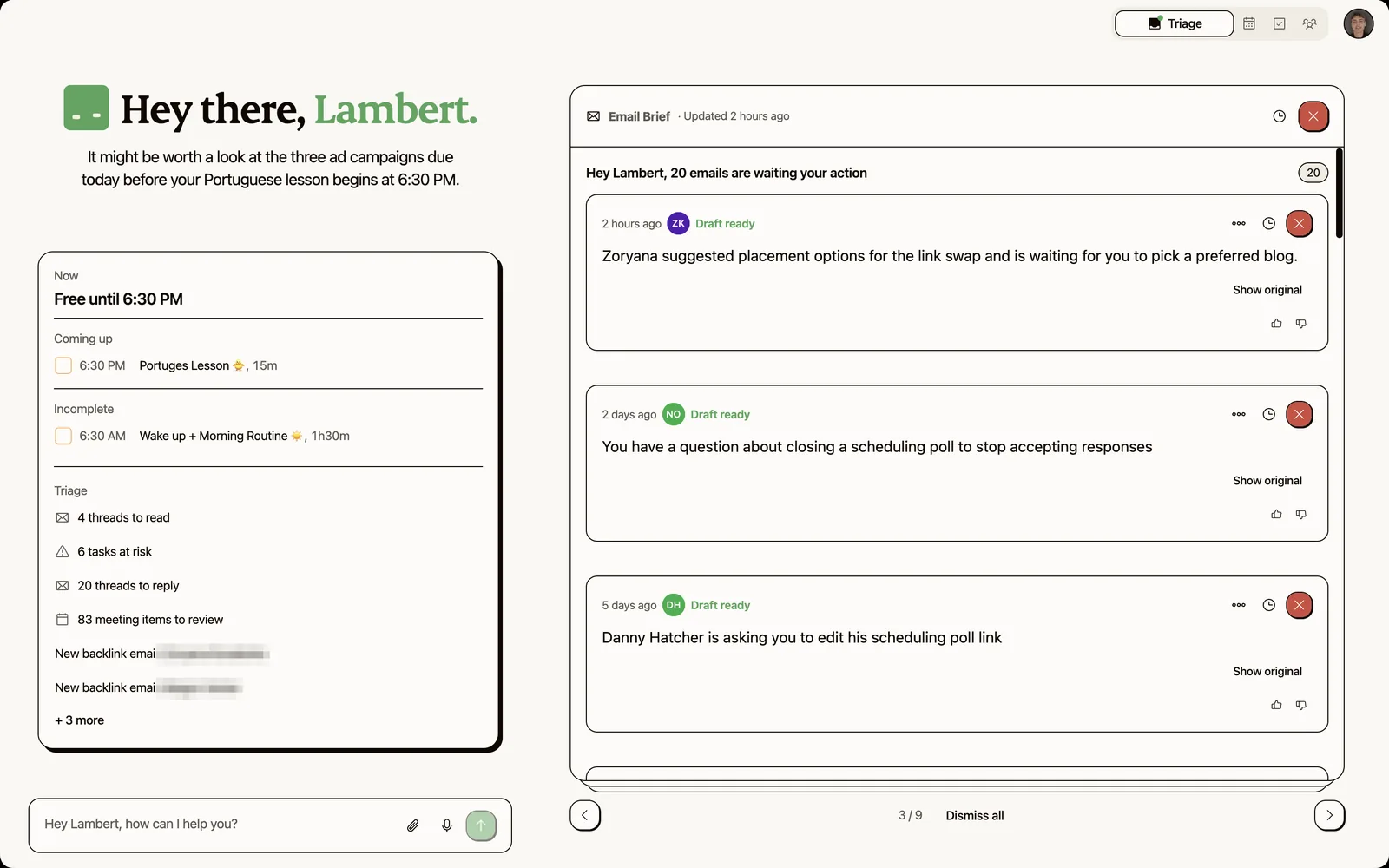
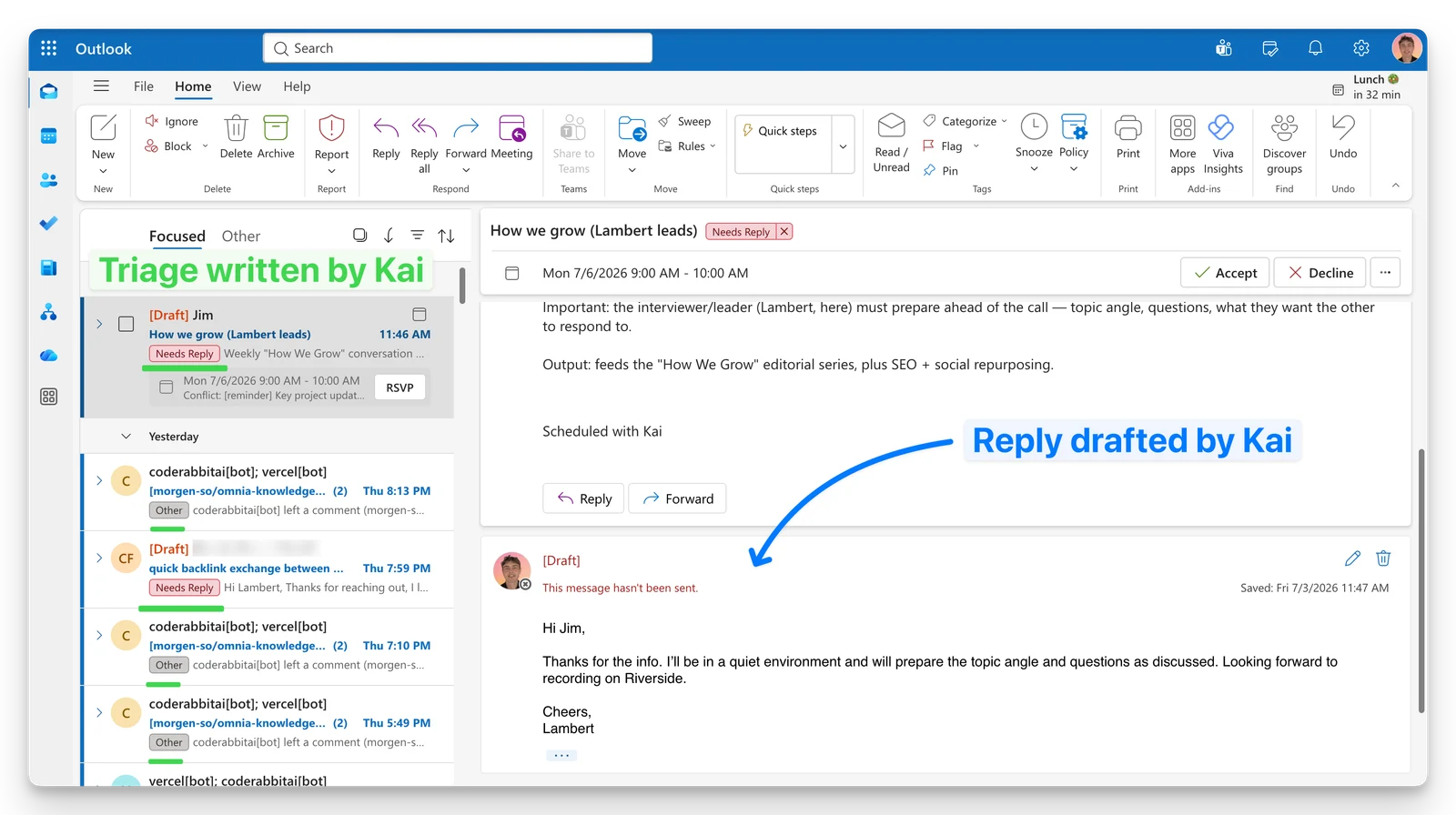
- Triage that can land in Outlook itself. Whenever mail arrives, Kai classifies the thread into one of five categories: Needs Reply, FYI, Waiting Reply, Other, or Done. Once you turn on mailbox sync, Kai writes them onto the thread as color-coded Outlook categories, so your sorting is visible in your real inbox. In Kai, the three that need you surface as tabs in the Email workspace, each thread led by a one-line briefing.
- Reply drafts written before you look. For threads that need an answer, Kai studies how you write to that person and writes a draft, with bracketed placeholders where it will not guess a fact. It waits in Kai, and once you turn on mailbox sync it also lands in your Outlook Drafts folder. In my own week this is the piece that changed the relationship with email: the draft exists before I have seen the message. You edit and send as yourself; nothing gets sent unless you say so.
- Action items become tracked tasks. Deadlines and asks buried in threads are extracted into real tasks, split between assigned-to-you and assigned-to-others, and they flow into your daily plan instead of a separate notes app.
- Waiting threads resurface. Threads where you are owed a reply come back after a few days, and Kai drafts the nudge when you ask it to. Set that up as one of Kai's recurring workflows and the list of who owes you an answer arrives on whatever schedule you pick, with nudge drafts in your drafts folder if you want them. You can also just ask Kai about any thread in plain language.
- Other AI agents get hands on your mailbox. Kai exposes the same email tools through its MCP server, so an external agent like Claude can read, draft, and send through Kai on your instruction. A real workflow from my past month: ask Claude to read through a piece of documentation, then have Kai send the relevant follow-up emails to the people concerned, from my own address. The research and the outreach happen in one conversation.
Building this on Microsoft Graph is also why this article keeps insisting on the boundary between drafting and relay work: we hit that boundary in code. Two examples we have not seen documented anywhere else. When our pipeline created a reply draft through Graph's standard createReply call, Outlook silently marked the whole thread as read, quietly destroying the unread state people rely on to know what is left, so Kai runs a repair step that restores it. And Outlook has no per-folder labels at all: categories live in one account-wide master list (masterCategories in Graph), so a triage system has to create its color scheme there and then tag each message individually. Details like these are invisible in a demo and decisive in daily use.
The honest limits. Kai doesn't archive, flag or file your mail on its own: nothing gets sent, moved or deleted unless you say so, and it writes categories and drafts to your mailbox only if you turn on sync. It supports Gmail and Outlook (Microsoft 365) only, with no IMAP or on-premises Exchange. It reads your mail live from Microsoft rather than storing a copy, which we consider a feature, but it means Kai is only as available as your connected account. And Kai is newer than everything else on this page, so the integration list is still growing.

The admin-consent wall (and what these tools can actually touch)
If you are connecting any assistant layer to a work account, expect IT to be part of the story. External email tools authenticate through Microsoft Graph and request permission scopes, and the two that matter are Mail.ReadWrite (read and modify mailbox items) and Mail.Send (send as you). Microsoft classes Mail.ReadWrite as high-impact and blocks it from end-user consent under its recommended policy, so an administrator has to approve it (Microsoft's permissions reference). That is the "Need admin approval" dialog, and it is working as designed (how admin consent works).
Two practical consequences:
- Budget a conversation with IT, not just a subscription. Consent for these scopes is typically tenant-wide, so admins reasonably want to review the vendor first.
- Ask vendors what they store. "Reads live from the provider" and "syncs a copy of your mail" are very different answers to the same feature list.
 Note
NoteThe rules keep tightening. From December 31, 2026, Microsoft requires a new elevated permission (Mail-Advanced.ReadWrite, admin consent only) for apps that modify sensitive properties of already-delivered messages (4sysops). Vendors building politely within Graph's rules will keep working; ones relying on odd write patterns may not.
For personal Microsoft accounts, none of this applies: you consent for yourself on the OAuth screen.
Which route fits you
The decision, compressed:
- You mainly want better-written email, and your org pays for Microsoft 365: use the Copilot you already have. Check for the Copilot icon in Outlook before spending anything.
- You want stronger drafting without Copilot's add-on price: MailMaestro or Grammarly, installed in five minutes, no admin drama in most tenants.
- Your pain is volume, missed threads, and follow-ups: you need an assistant layer. Superhuman if you want a faster client you drive yourself. Fyxer if you want background triage and drafts and nothing else.
- Your email pain is really a coordination pain, where threads turn into meeting minutes, meeting notes turn into follow-up emails, and everything turns into tasks: that whole-day relay is the job Kai was built for, email included.
And if you run your day out of subfolders on a classic Outlook install: check the compatibility fine print on every one of these, including Copilot, before you pay. That detail disqualifies more tools than any feature comparison.
FAQ
Is there an AI email assistant for Outlook?
Yes, three kinds. Outlook has Copilot built in for drafting, coaching, summaries, and priority flags (Microsoft). Marketplace add-ins like MailMaestro and Grammarly improve writing inside Outlook. And assistant layers like Fyxer, Superhuman, and Kai connect to your account over Microsoft Graph to triage, draft, and track follow-ups across the whole mailbox.
Is Copilot in Outlook free?
Not really. Consumer Microsoft 365 plans now bundle Copilot for the subscription owner (Personal is $9.99/mo after a $3 price increase tied to the bundling), but on Family plans only the owner gets it. Work accounts need a paid add-on on top of a qualifying base plan: $18 to $30 per user per month depending on the agreement (Microsoft's pricing, checked July 2, 2026).
How do I enable AI in Outlook?
For work accounts: your admin assigns a Microsoft 365 Copilot license on top of a qualifying base plan, your account needs Entra ID, and your mailbox must be hosted in Exchange Online. If any one of those is missing, the Copilot features stay hidden (Microsoft's requirements). For external tools, you connect your Microsoft account through OAuth, and on many work tenants an admin must approve the permissions first.
Can AI in Outlook sort my inbox automatically?
Partially. Copilot's Prioritize feature flags incoming mail as high, normal, or low priority, but it does not categorize or reorganize your inbox, and it skips mail delivered to subfolders, meeting invites, and encrypted messages (Microsoft). Autonomous sorting into categories that appear in your real inbox is assistant-layer territory: Fyxer sorts into three buckets, and Kai writes five color-coded categories onto your actual Outlook threads.

What to read next
AI for Customer Success: Which Tools Remember What You Promised
AI tools for customer success, scored on the question listicles skip: when you promise a customer something in March, does anything tell you in September?
AI Tools for Executive Assistants: What EAs Actually Use in 2026
Compare the AI tools executive assistants actually use in 2026, tested on the point vendors skip: whether they work in your exec's inbox and calendar.
The 6 Best AI Executive Assistants in 2026, Compared
Compare the best AI executive assistants of 2026 against a published five-capability rubric, with our own product scored by the same rules.